Skip to content
This guide walks you through the steps to create templates for job card notes in Workshop Software. This is a common task when managing your day-to-day invoicing and job card workflow.
Instead of typing the same notes or information on to every job card you can create templated wording and insert the template into the job card notes each time it is needed.
To create a new template:
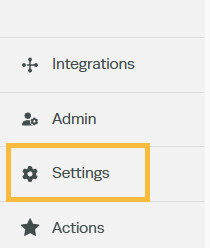
1. Click on ‘Settings’ from the list of options down the left hand side and then click on ‘Company Lists’:
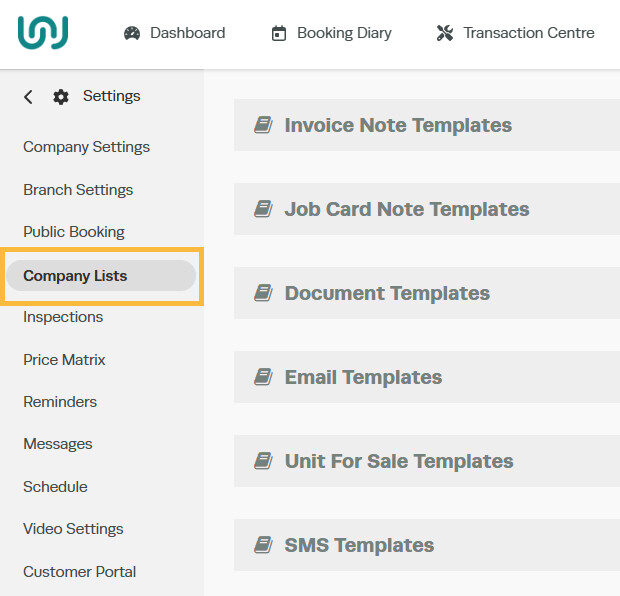
From here you will be able to choose different sections that you can create templates for. (i.e. templates created under Job Card Note Templates will be available for job card notes only).
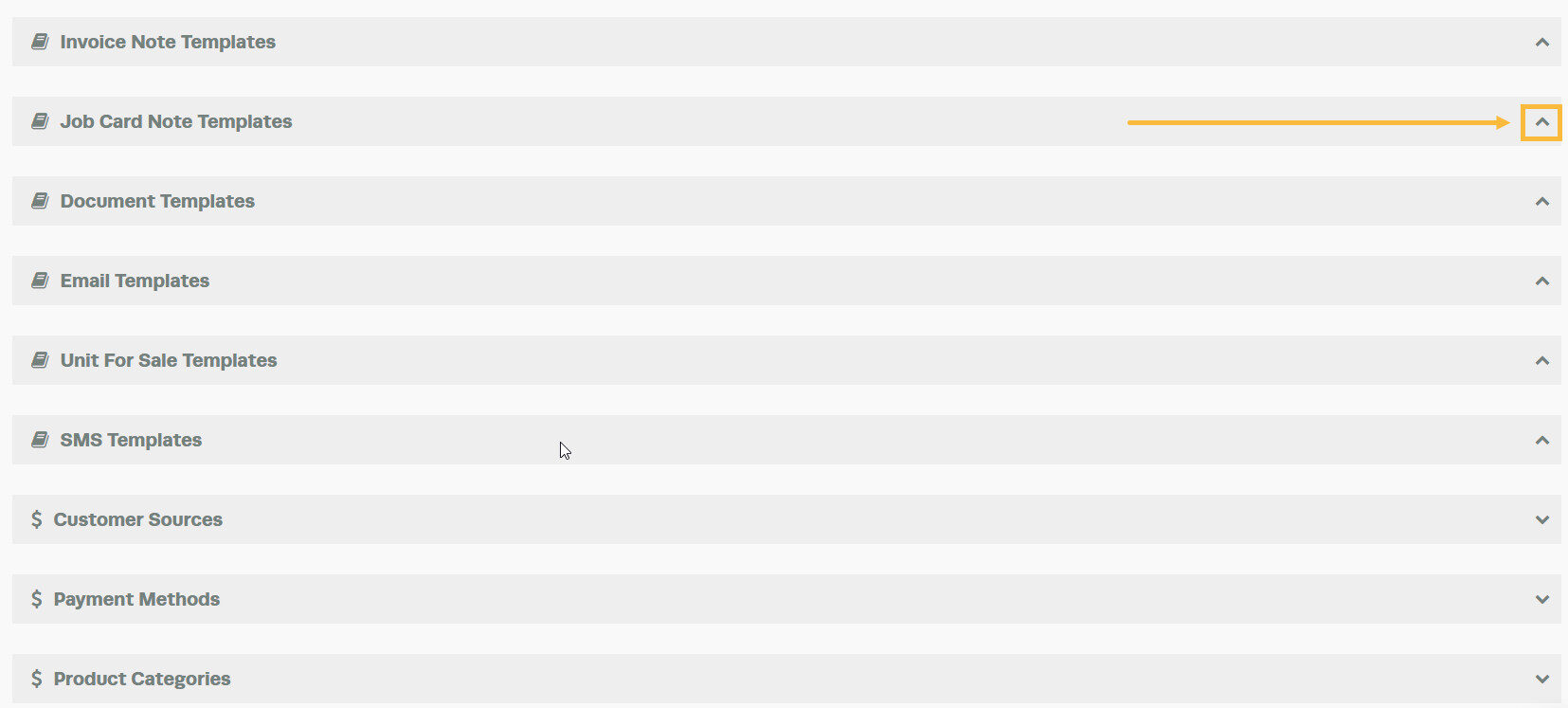
2. Click on the arrow key for Job Card Note Templates to expand on this section:
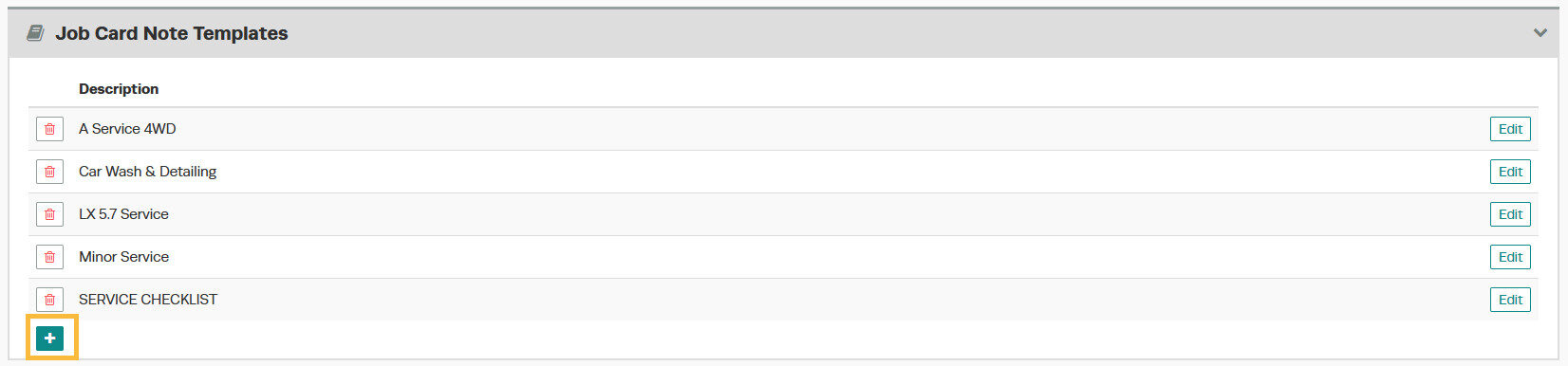
3. Click on the green ‘+’ icon to add a new template:
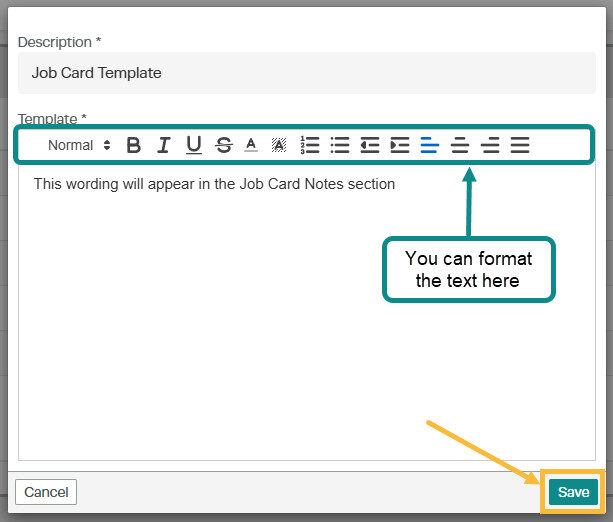
4. Create your template, give it a description that will make it easily identifiable. You can format the text a number of different ways. Once you have entered your text click on the green ‘Save’ button in the bottom right:
To enter the template on a job card:
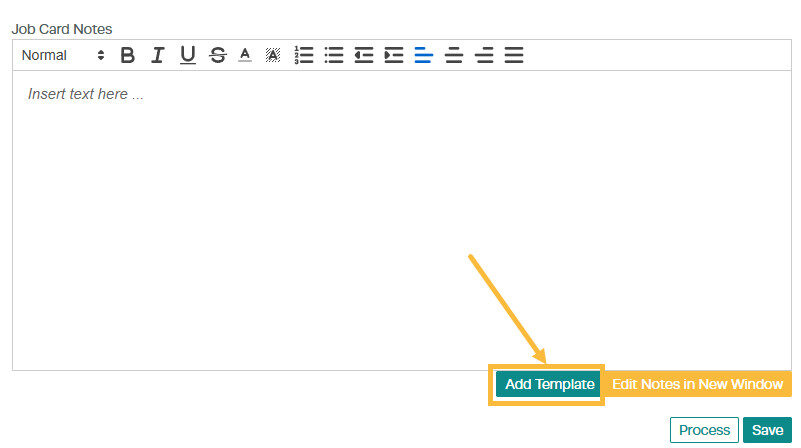
1. Click on the ‘Add Template’ button at the bottom of the Job Card Notes field in a job card:
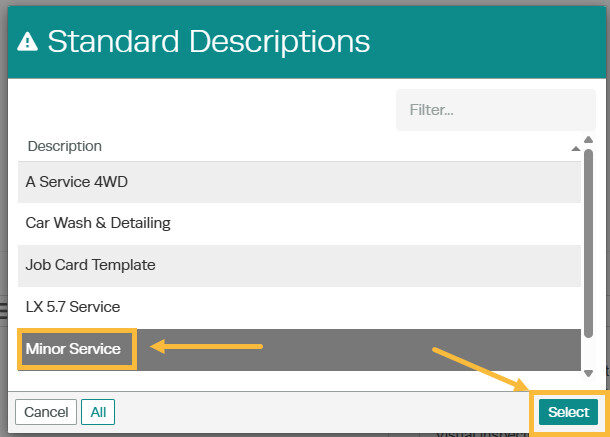
2. A pop up box will appear offering a selection of templates available, select the template you want to insert and then click on the ‘Select’ button:
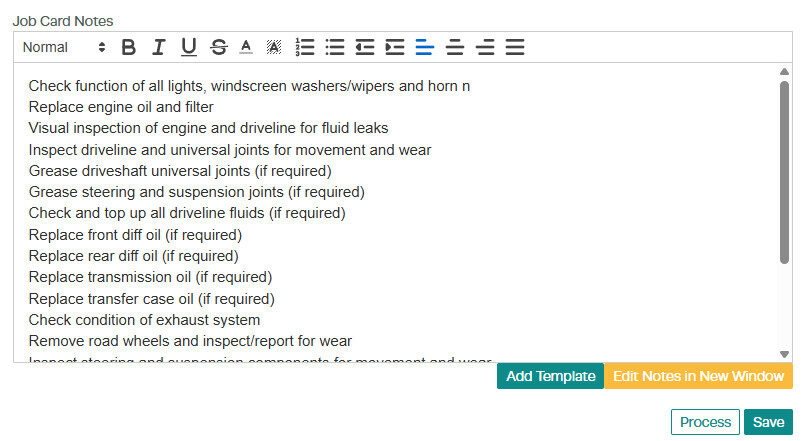
3. The wording will now appear in the job card notes and is able to be edited if required:
Good to Know
- You can find this option under Settings > Company Settings in the left-hand menu.
- Make sure you click Save after making your changes. If you navigate away before saving, your changes will be lost.
- You can print, email, or SMS the invoice to your customer once it is ready.
Frequently Asked Questions
Where do I find this setting in Workshop Software?
Navigate to Settings in the left-hand menu. The specific option is described in the steps above.
Can I change this setting back later?
Yes. This setting can be changed at any time by following the same steps and adjusting the option as needed. Remember to click Save after making your change.
Will this change appear on the printed or emailed invoice?
Yes. Any changes you make to the invoice content in Workshop Software will be reflected on the printed, emailed, or SMS version that your customer receives.