Workshop Software has introduced Two-Factor Authentication (2FA) to enhance security and protect our users from unauthorised access. In today’s digital environment, relying solely on passwords is no longer sufficient due to the increasing number of cyber threats and data breaches. 2FA adds a critical second layer of protection, ensuring that even if a password is compromised, unauthorized individuals cannot access user accounts without the second form of verification, such as a code sent to a phone or email.This feature reinforces our commitment to safeguarding sensitive information and providing a secure platform for our users.
Enabling 2FA in Company Settings:
Navigate to the Settings section, then Company Settings, and you will notice the option to Enable 2FA. Once you switch the toggle to YES, you will be able to choose between two options: 1.Enforce 2FA For All Users: this forces all users in the organisation to use 2FA (switch the toggle to YES to enforce this method of authentication for all users);2. Enable 2FA per User: if you do not enforce 2FA for all users in this section, you can enable it individually by going to Settings, then User Setup/Maint. section, selecting the user you would like to activate the Two-Factor Authentication for that user.Please note that once enabled in the Company Settings, you must configure the frequency with which users need to perform the 2FA. This could involve receiving a code via email or SMS.Make sure that you SAVE the changes, 2FA is then active for your account and can be configured for users as needed.
2. Configuring 2FA for Individual Users
As indicated above, to configure 2FA for Individual Users, go to the User Setup/Maint. section of your account Settings and select the user you want to enable 2FA: . To ensure the user receives the 2FA verification code via SMS, please ensure a valid phone number is provided when selecting this option. You must have a positive SMS balance in your account to receive text messages. Please refer to the instructions on how to add SMS credits to your account.. When selecting the option for the user to receive the 2FA verification code via email, please ensure that the login details include a valid and correctly spelled email address.Save the changes.
3. Using 2FA to Log in
When logging in, after entering your password, you will receive a verification code via SMS or email (depending on your chosen method). Enter the code on the login screen and submit it.You should now have access to your account.Note: If you are using SMS for 2FA, you will receive a text message with the code. For example, you may receive a code like “311060”. Simply enter the code to gain access.
4. 2FA via SMS
If you choose SMS as your 2FA method, a verification code will be sent to the selected mobile phone number. This code remains valid for 5 minutes. Please ensure your phone plan includes SMS messaging capabilities.
If SMS messages are unavailable, you will see a red banner notifying you that you need to add more SMS credits.
In the case that you cannot receive SMS (due to lack of credits or any other reason), you may have to use your email for 2FA
5. 2FA Via Email
If you choose email as your 2FA method, a verification code will be sent to the selected email address. This code will remain valid for 5 minutes.
Note: If you encounter any other issues or have concerns, please contact your account manager or email our team at support@workshopsoftware.com
 Skip to content
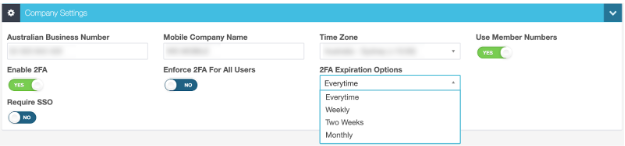 Please note that once enabled in the Company Settings, you must configure the frequency with which users need to perform the 2FA. This could involve receiving a code via email or SMS. Make sure that you SAVE the changes, 2FA is then active for your account and can be configured for users as needed.
 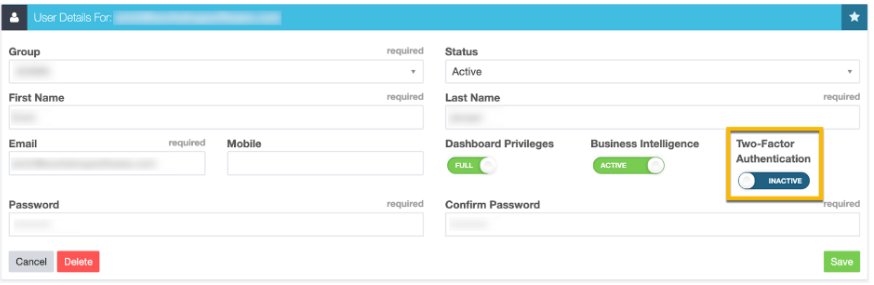 Save the changes.
 You should now have access to your account. Note: If you are using SMS for 2FA, you will receive a text message with the code. For example, you may receive a code like “311060”. Simply enter the code to gain access.
