 Skip to content
This guide walks you through the steps to change the costing on a product within a job in Workshop Software.
Step 1: Open the Job and Access the Action Menu
- Open the job containing the product you want to update.
- Click the action menu (star icon) on the right-hand side of the product line.
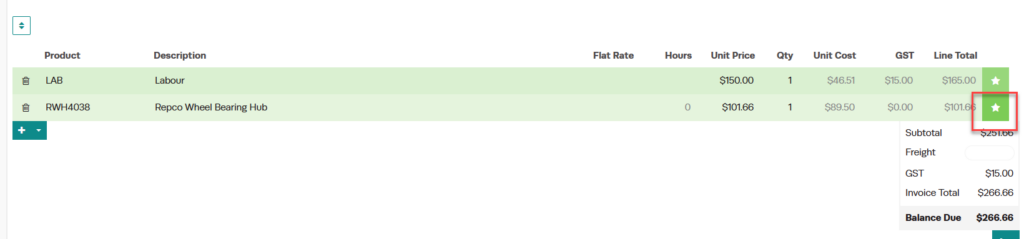
Step 2: Select Change Unit Cost
- From the action menu, click Change Unit Cost.
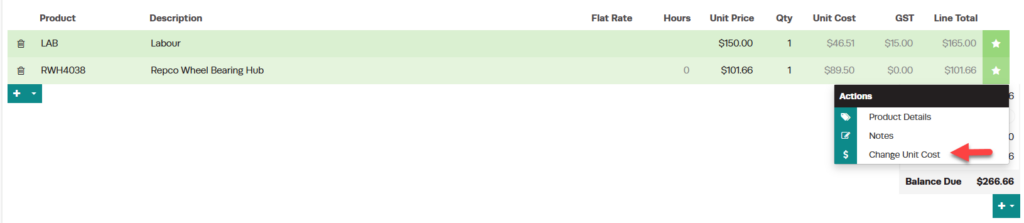
Step 3: Enter the New Cost and Save
- Enter the new cost for the product.
- Click Save.
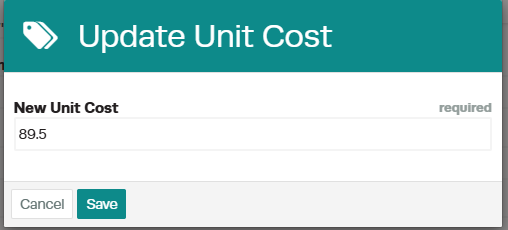
Good to Know
- Product costs can only be updated within a job if the product currently has a quantity on hand of 0 in Workshop Software. If the product has a quantity greater than 0, this option will not appear.
- Make sure you click Save after making your changes. If you navigate away before saving, your changes will be lost.
- You can print, email, or SMS the invoice to your customer once it is ready.
Frequently Asked Questions
Can I undo this change to the invoice?
You can update the invoice again by following the same steps. Workshop Software does not have a specific undo function, but you can always re-enter the previous values.
Will changing the cost affect my reports?
Yes, changing the cost on a job will affect your profit margins and reports. Make sure you enter the correct cost to ensure accurate reporting.
