 Skip to content
Please note additional users of Workshop Software will incur an additional charge of $20+tax/month, if you are a yearly subscriber this will be calculated as a pro-rata rate based on today’s day and when your subscription is due to renew.
You need to have ‘Admin‘ access to add an additional user
Steps
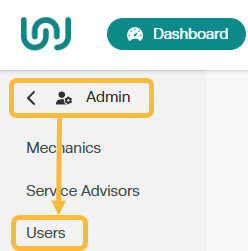
1. Click on ‘Admin’ from the list of option down the left hand menu bar to expand the Settings menu, then select ‘Users’
2. Click on the ‘+‘ button on the far right of the Users bar;

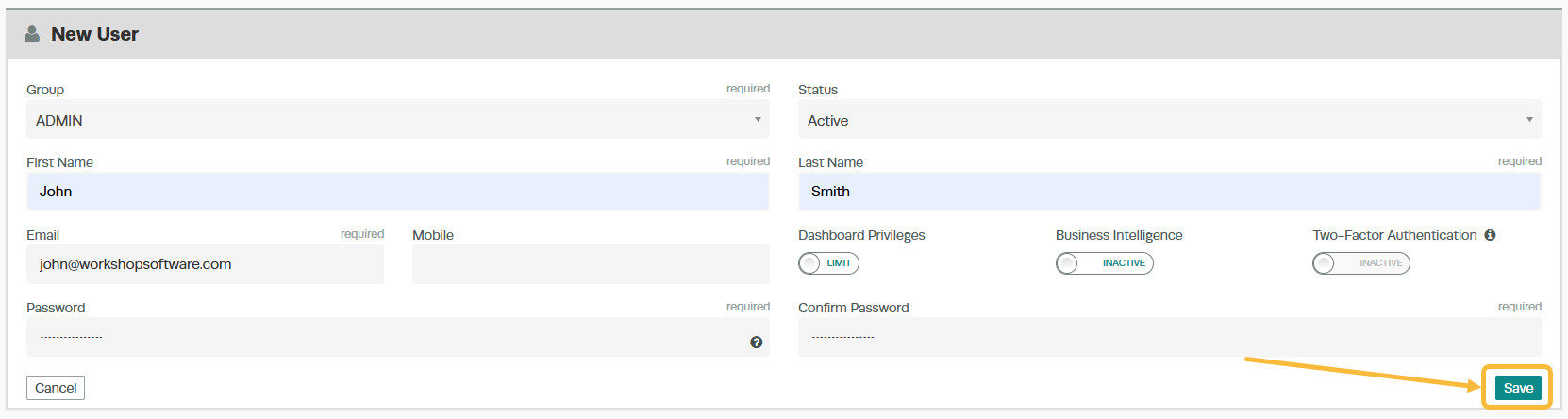
3. Enter the details of the new user:
- Group – select from Admin (Highest permission setting), Manager, Owner, Users etc. (Required)
- Status – select from Active, Inactive or Blocked
- First Name (Required)
- Last Name (Required)
- Email (Required – see note)
- Mobile – if a mobile is entered, this will allow for mobile 2FA messages
- Dashboard Privileges – choose to limit or allow user full access for viewing dashboard including sales figures
- Business Intelligence – choose to have Business Intelligence information (Including graphs, figures and reports) turned on for this user
- Two-Factor Authentication – this will need to be turned on in ‘Company Settings’ (Required for Xero)
- Password & Confirm password (Required)
4. Press save.
Please note You must use a valid email address to ensure password reset is accessible.
