The first step getting setup with WPAY is to fill out this form. A member of the Nuvei team will reach out and help guide you through the application process. Some preparation you can do to aid with the setup process is the following:
Have your business details handy! This includes things like your trading name, ABN, owner/bank details.
You may be asked to provide proof of identity.
If your business is operating as a trust then make sure you have the details of the trust.
Once the account activation process is complete, Nuvei will provide you with login details to your payment gateway portal. You can login and view your Nuvei account here. This is where you can you find relevant details to make the connection between Workshop Software and your new payment processing facilities. The following is needed to enable the integration:
WPAY Online –
API Username
API Password
Online Shared Secret
Online API Key
WPAY Terminal –
Merchant ID (MID)
API Key
Terminal ID (TID) – the list of available terminals will automatically populate this field once the above is entered
Once Nuvei has confirmed your account is active you can get the above account details and login to Workshop Software.
Navigate to Integrations > POS Integrations > WPAY
WPAY Online Setup
WPAY Online allows you to send payment requests to your customers via email or SMS. You may want to use different wording when sending a customer an invoice with a payment request versus without, to streamline this we have added another message template for payment requests. To set this up simply do the following:
Navigate to Settings > Messages
From here scroll to the bottom of the page and you will see two fields, one for the default email message and one for the default SMS message. Enter your message and press save. These messages will load up automatically when sending out a payment request.
Note: Make sure to include the %InvoiceURL% placeholder so your customer receives the link!
WPAY Terminal Setup
In order to streamline the setup of a WPAY terminal all that is required is your account details. Once these are entered and saved on the WPAY settings page a list of available terminals will automatically be added to the Terminal ID dropdown. Active terminals are managed in your Nuvei portal. If you have completed the integration setup and your terminal is not appearing in the list please reach out to Nuvei customer support which you can access here.
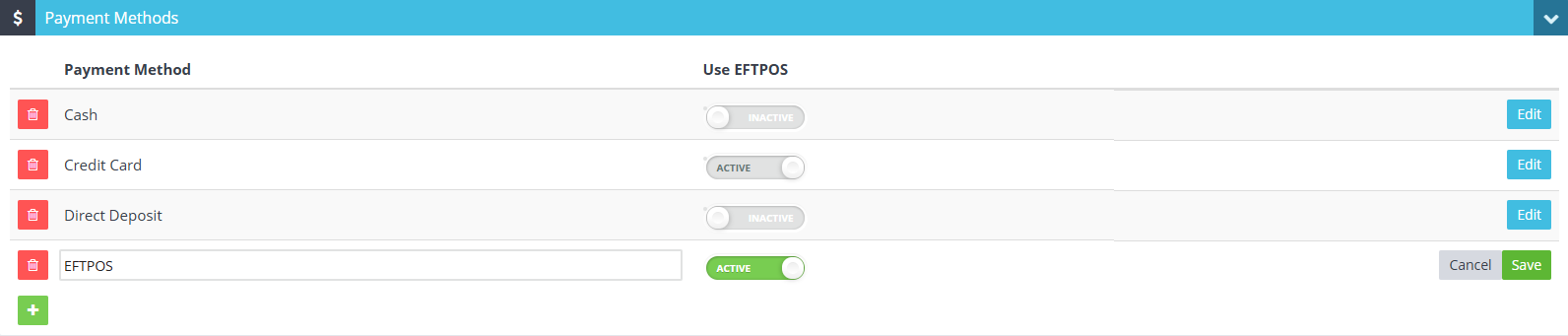
In order to send payment requests to your terminal you will need to enable EFTPOS on a payment method. To set this up simply do the following:
Navigate to Settings > Company Lists > Payment Methods
From here you can either create a new payment method or edit an existing one. You will see there is a ‘Use EFTPOS’ toggle, setting this to ACTIVE means whenever a payment is processed with that payment method in use Workshop Software will send a payment request to your terminal. More information on managing Payment Methods can be found here.
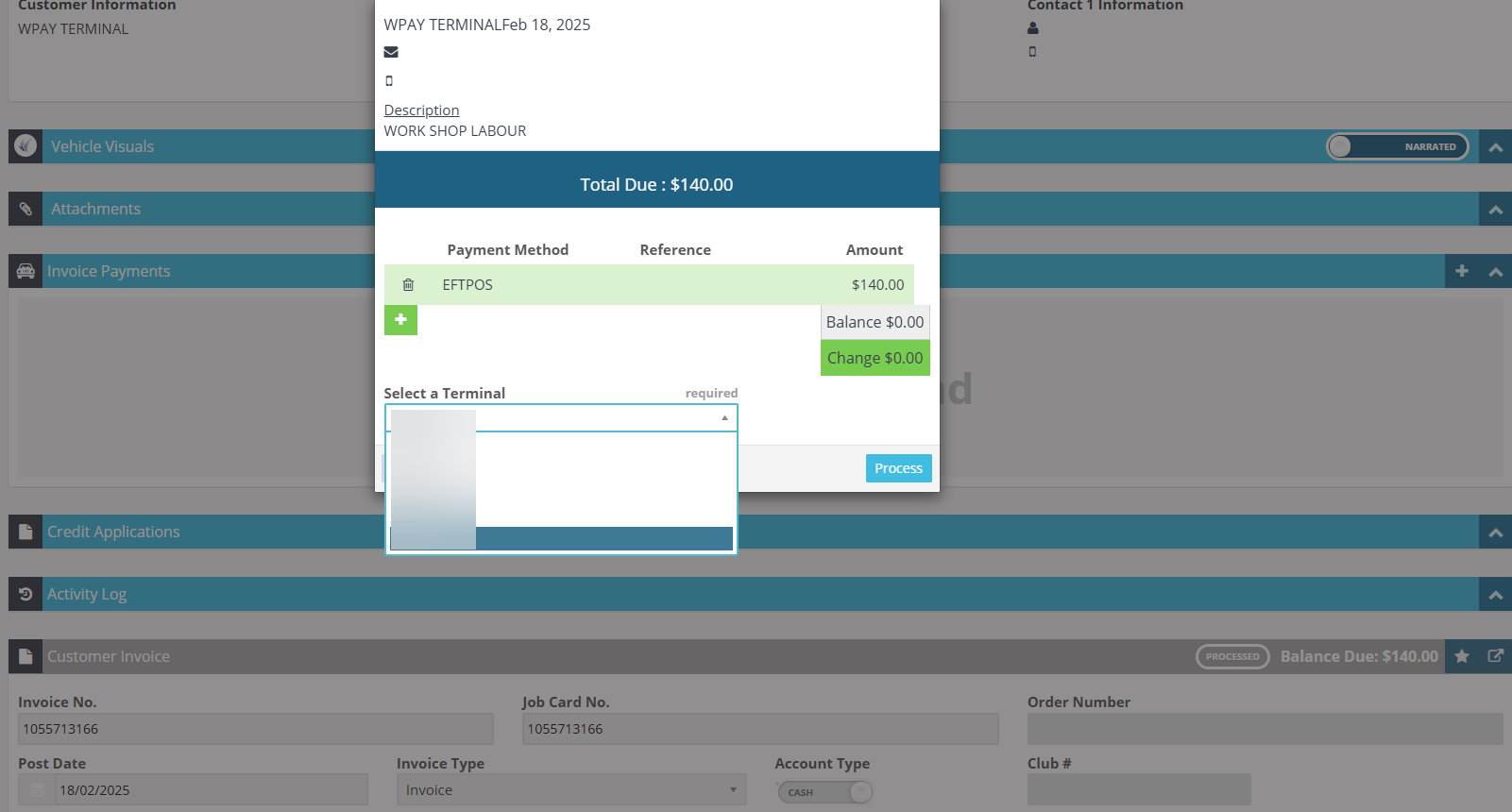
If you are using more than one terminal, the first time a user initiates a payment request to the terminal this will also give the user an opportunity to set a default terminal. This can be found on the Cash type invoice payment screen. More information on making payments against Cash type invoices can be found here.
 Skip to content
 WPAY Online Setup
WPAY Online allows you to send payment requests to your customers via email or SMS. You may want to use different wording when sending a customer an invoice with a payment request versus without, to streamline this we have added another message template for payment requests. To set this up simply do the following:
Navigate to Settings > Messages
From here scroll to the bottom of the page and you will see two fields, one for the default email message and one for the default SMS message. Enter your message and press save. These messages will load up automatically when sending out a payment request.
WPAY Online Setup
WPAY Online allows you to send payment requests to your customers via email or SMS. You may want to use different wording when sending a customer an invoice with a payment request versus without, to streamline this we have added another message template for payment requests. To set this up simply do the following:
Navigate to Settings > Messages
From here scroll to the bottom of the page and you will see two fields, one for the default email message and one for the default SMS message. Enter your message and press save. These messages will load up automatically when sending out a payment request.
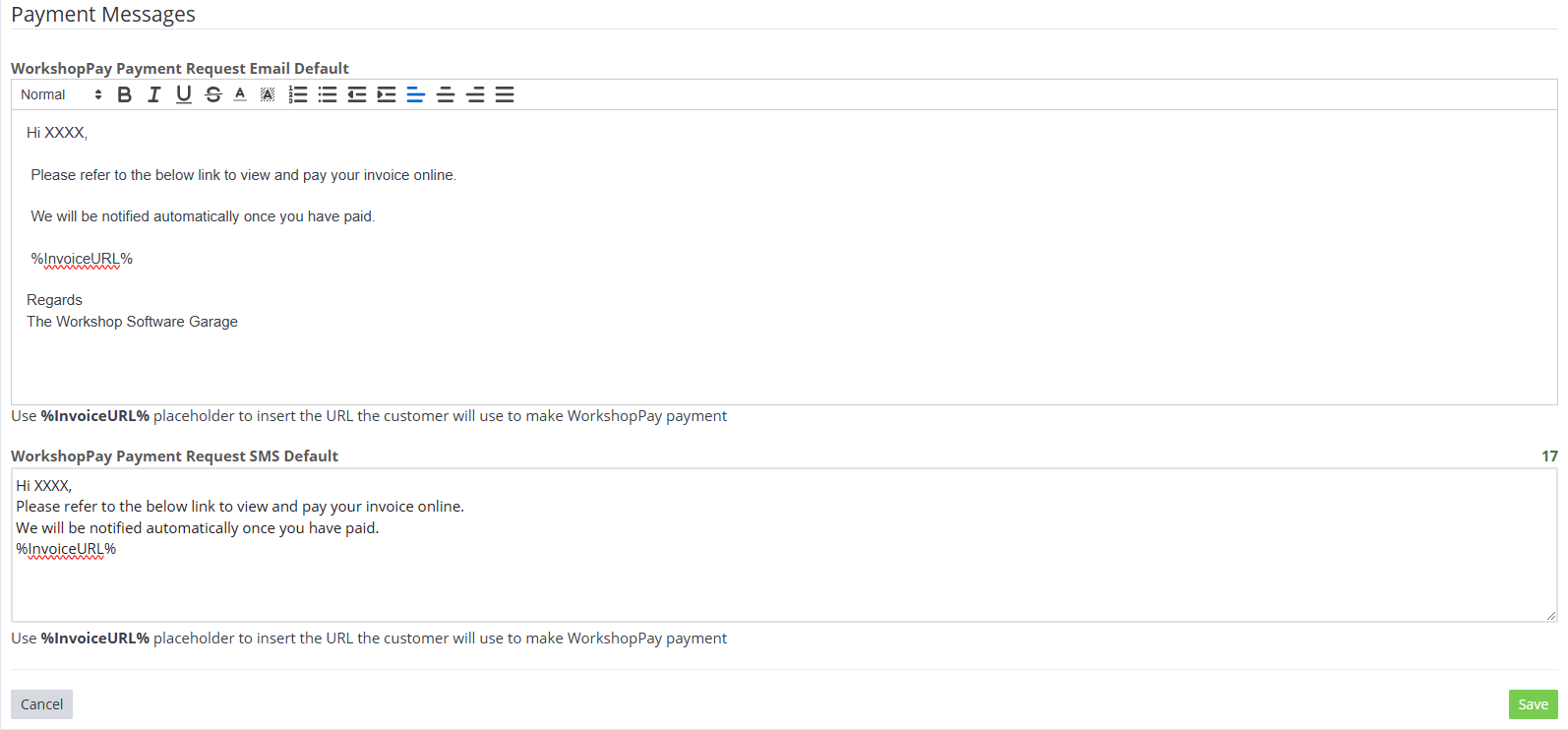 Note: Make sure to include the %InvoiceURL% placeholder so your customer receives the link!
 If you are using more than one terminal, the first time a user initiates a payment request to the terminal this will also give the user an opportunity to set a default terminal. This can be found on the Cash type invoice payment screen. More information on making payments against Cash type invoices can be found here.