Skip to content
Your Company Profile is used throughout Workshop Software to customise printed documents, customer facing elements and to configure default settings to suit your Country and State of operation.
IMPORTANT: Your Company Profile details are used by Workshop Software to populate contact and company information in your invoices, statements and other documents, please ensure they are accurate.
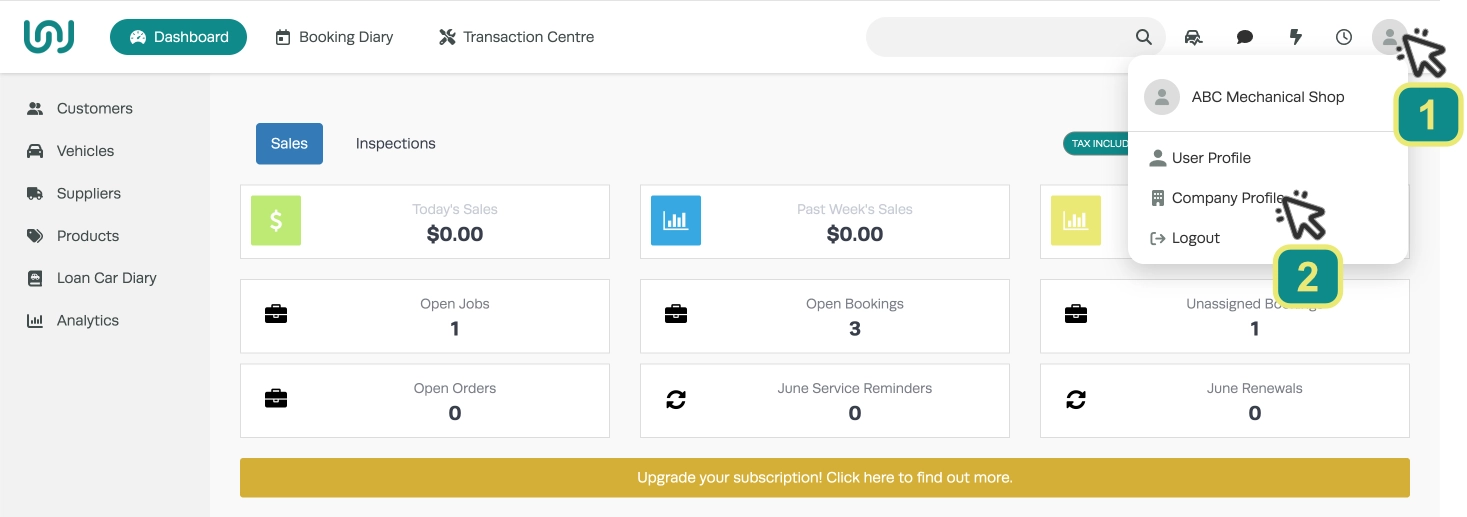
- Access your company profile by clicking the top right User icon (1) then Company Profile (2).
Upload your Company Icon and Letterhead Images
Your Company Letterhead is used at the top of your Customer Invoices, Quotes, Supplier Stock Orders, Receipts and Credit Adjustments Notes. The Company Icon is used for Online Inspection records and other user interface elements in your system.
- To upload your images click on either Choose Image button (3) and select your image. Please take note of the maximum file size, file type and suggested dimensions when choosing an image.
- Once the file is chosen the Upload button (4) will turn green, click this button and wait until an “Upload successful” message appears in the bottom right corner.
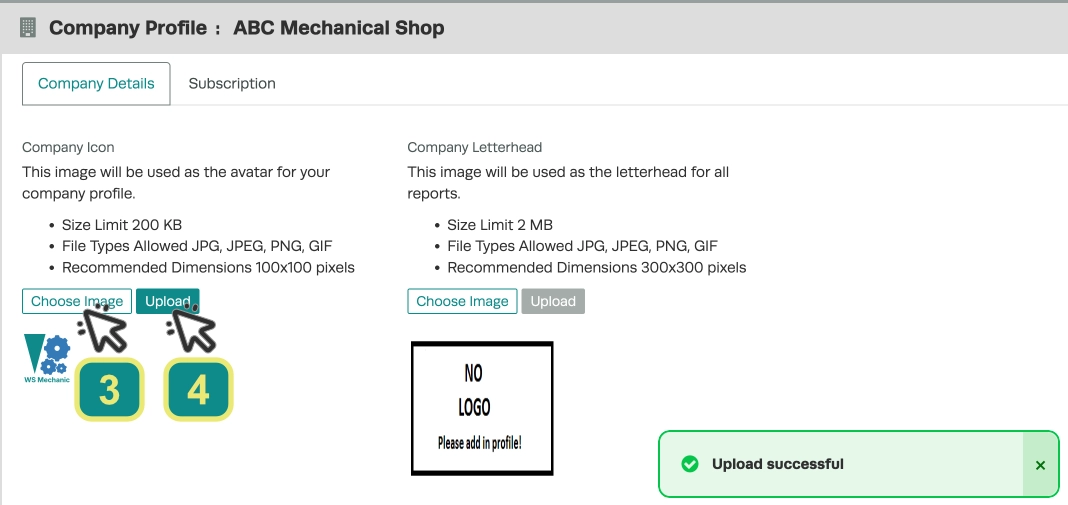
- Click Save in the lower right hand corner of the screen to save the first image.
- Repeat this process to upload your second image.

Enter or Update Company Details
You may modify the fields of your Company Profile to provide your business name and contact information. This is also a location where users may purchase outbound SMS Credits for their business.
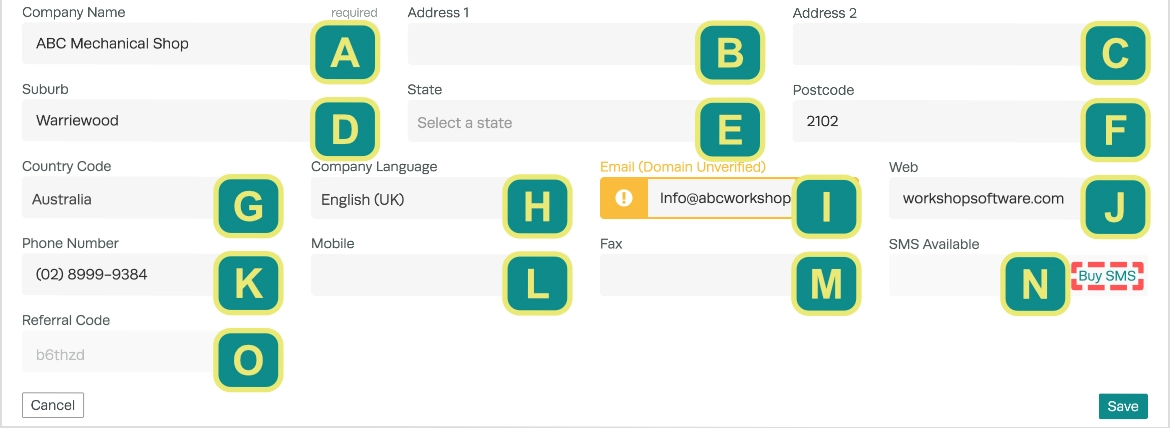
Company Name (A): This field should contain the trading name of your company and will appear throughout Workshop Software’s interface and printed documents.
Company Address (B C D E F): Your company address is used on printed documents and with WorkshopWeb’s website building process to generate a web address and as the default address in the Contact Page. The State field will also modify Workshop Software for any regional regulations such as New South Wales’ MVRL licensing requirement.
Country Code (G): The Country Code controls the available State field (E) options and will modify Workshop Software’s interface and default settings for the Country chosen.
Company Language (H): The choice of language will modify the spelling and terminology used in Workshop Software to suit local norms. English (UK) is the default and correct for Australian Businesses.
Email (I): This email will be used as the Contact email in printed documents and WorkshopWeb. Email’s may also be Verified to allow Workshop Software to send emails from this address if a user owns a Custom Domain i.e. not from a shared email provider like gmail.com or outlook.com.
Web (J): For a company’s website URL, appears in Printed Documents.
Phone, Mobile and Fax(K L M): Contact numbers will appear in Printed Documents, they DO NOT interact with outbound or Two Way SMS functionality.
SMS Available (N): The remaining SMS Credit count will appear here and users may click Buy SMS to purchase additional SMS Credits.
Referral Code (O): The code visible here may be shared with any Workshop or Individual considering their own Workshop Software subscription. If they subscribe and enter your Referral Code both you and the new subscriber will receive a credit towards your subscription.
Please note: For our international users please enter in your country first as this will adjust information (State) and formats (Phone) that are relevant to your country.
- Remember to click on Save before leaving this page.
Frequently Asked Questions
Where do I find this setting in Workshop Software?
Go to the user icon in the top right corner of the screen and choose Company Profile in the drop down menu.
Can I change this setting back later?
Yes. This setting can be changed at any time by following the same steps and adjusting the option as needed. Remember to click Save after making your change.