 Skip to content
Integrating integrate HSY with Workshop Software connects the two systems so data flows between them without manual entry. Once set up, this integration saves time and reduces the chance of errors when working across platforms. Follow the steps below to configure the integration.
IMPORTANT – BEFORE YOU START-
- You need to ensure you are on the web version of HSY and not the computer application version.
- If you are on the computer application version please contact your HSY representative to change to the web version
- Your customer numberPINIn order to activate your integration you will need to have on hand:\n\t
 1. Click on Integrations from the left-hand menu in Workshop Software
2. Click on Automotive Integrations
3. Click on HSY
4. Click on Activate HSY
1. Click on Integrations from the left-hand menu in Workshop Software
2. Click on Automotive Integrations
3. Click on HSY
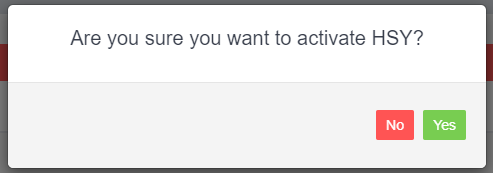
4. Click on Activate HSY  A pop up box will appear asking if you are sure you want to activate HSY – Click Yes Click on image to enlarge
  5. Start typing in HSY Autoparts Pty Ltd in the HSY SUPPLIER field, and click on the correct supplier available.
PLEASE NOTE if you are integrated with an accounting application and you have an HSY Supplier record already, please use that supplier record for your integration
 6. Enter in your HSY customer number, PIN and registered email address in the fields provided
PLEASE NOTE when entering your HSY PIN please enter in the number as provided to you INCLUDING ANY SPACES
 Once all details are entered in click SAVE, your integration with HSY is now completed.
Good to Know
- Make sure you click Save after making your changes. If you navigate away before saving, your changes will be lost.
- If you experience any issues during setup, contact the Workshop Software support team for assistance.
Frequently Asked Questions
What do I do if the integration is not working?
First, check that your credentials are entered correctly and that both systems are accessible. If the issue persists, check the event log in Workshop Software for specific error messages, or contact the Workshop Software support team for assistance.
Can I disconnect this integration later?
Yes. You can disable or disconnect the integration at any time through the integration settings in Workshop Software. Disconnecting does not delete any data that has already been synced.
