 Skip to content
Workshop Software lets you set up prompts to help me update rego/wof + other due dates through your account settings. Adjusting this setting ensures your workflow matches the way your workshop operates. The change takes effect immediately once saved. Follow the steps below to update this setting.
In Workshop Software, you have the ability to set up a pop up box to remind you to check/update a customer’s vehicles Rego/WOF due date, current odometer reading our equipment hours.
To set up the prompt
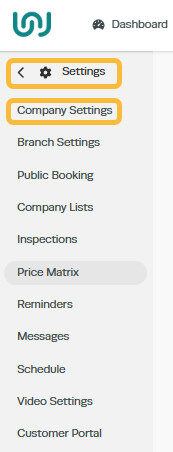
1. Click on ‘Settings‘ and then ‘Company Settings‘
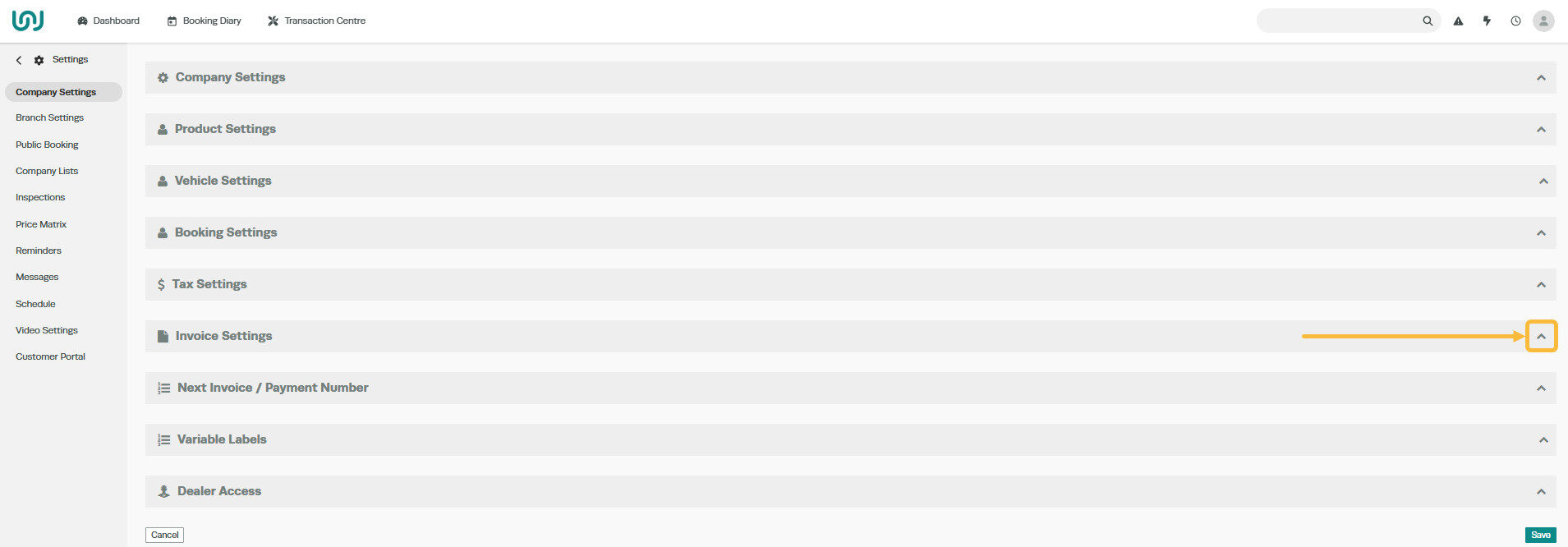
2. Scroll down to ‘Invoice Settings‘ and click on the arrow to expand this option.
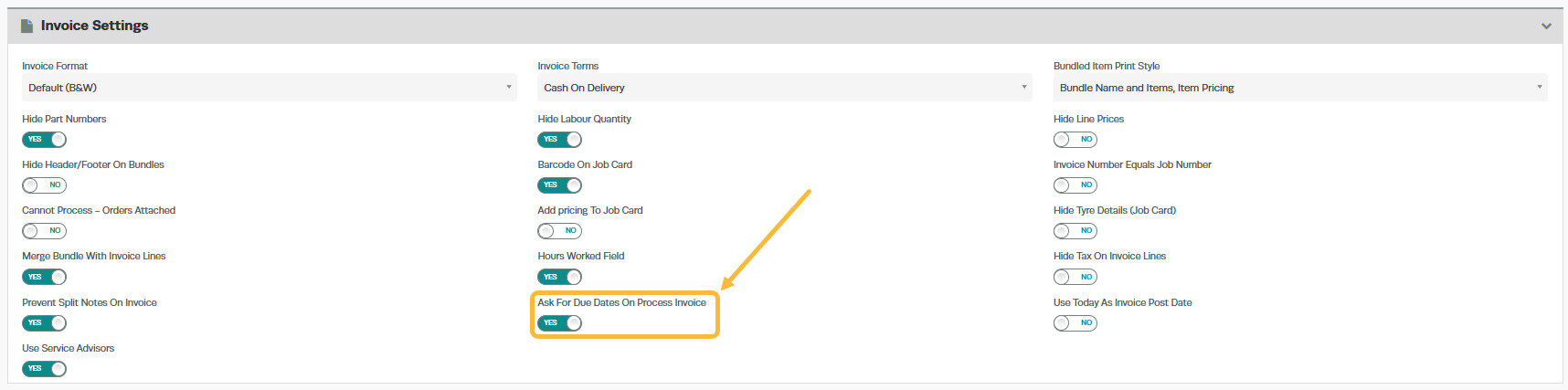
3. In the middle column of buttons, in the last row there is an option to ‘Ask for Due Dates on Process Invoice‘, click on this toggle so that it says ‘Yes‘
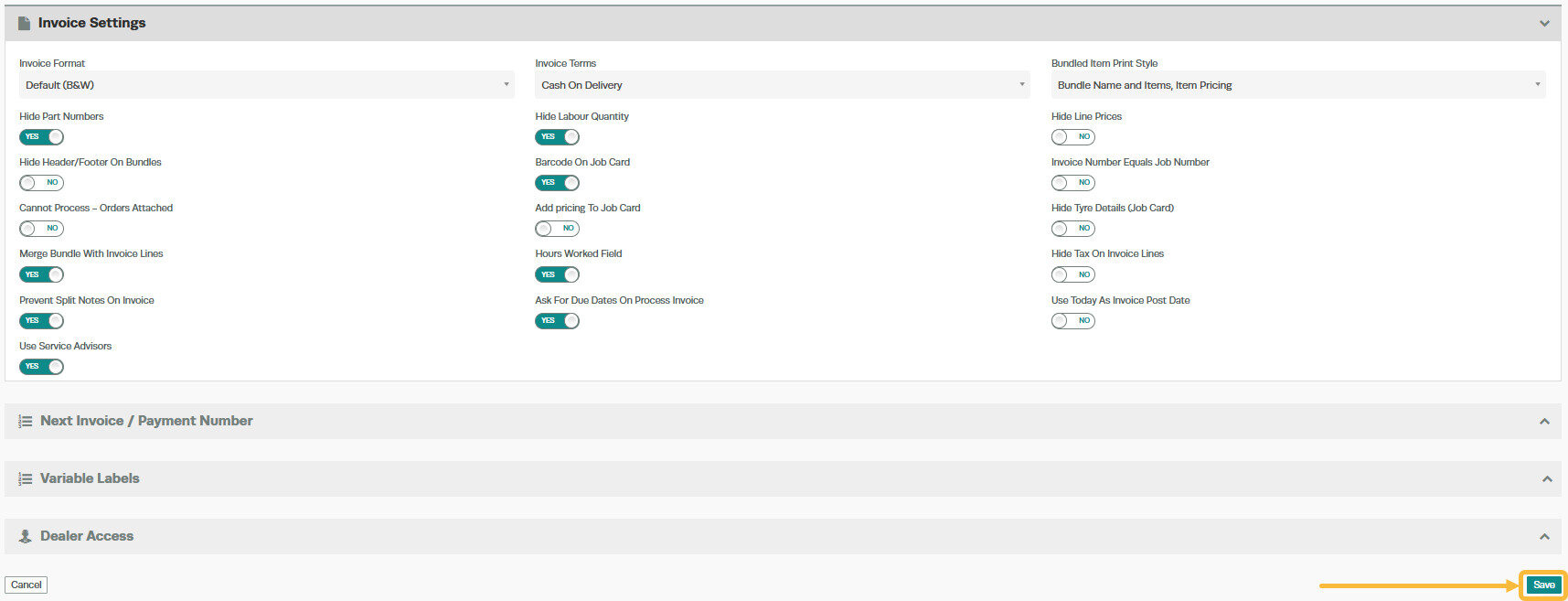
4. Scroll down to the bottom of the page, click on the ‘Save‘ button located on the bottom right-hand corner of the page.
How does the prompt work?
When you process an invoice, a pop up box will now appear, displaying the current data for this vehicle in regards to their rego due date and current odometer or hours reading.
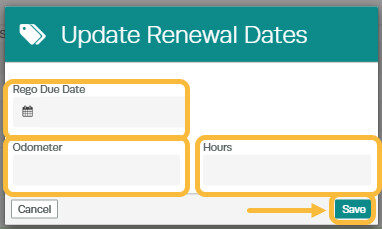
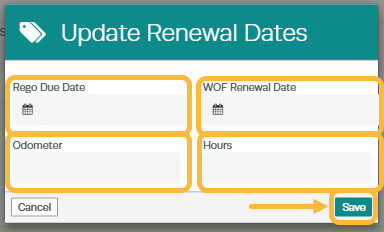
If there is no Rego/WOF due date populated in the vehicle profile, the field will be blank. At this point you can enter in their next due date in the ‘Rego/WOF Due Date’ field. Same thing applies to the Odometer and Hours fields.
Once you have updated these fields with the up-to-date information click the ‘Save‘ button.
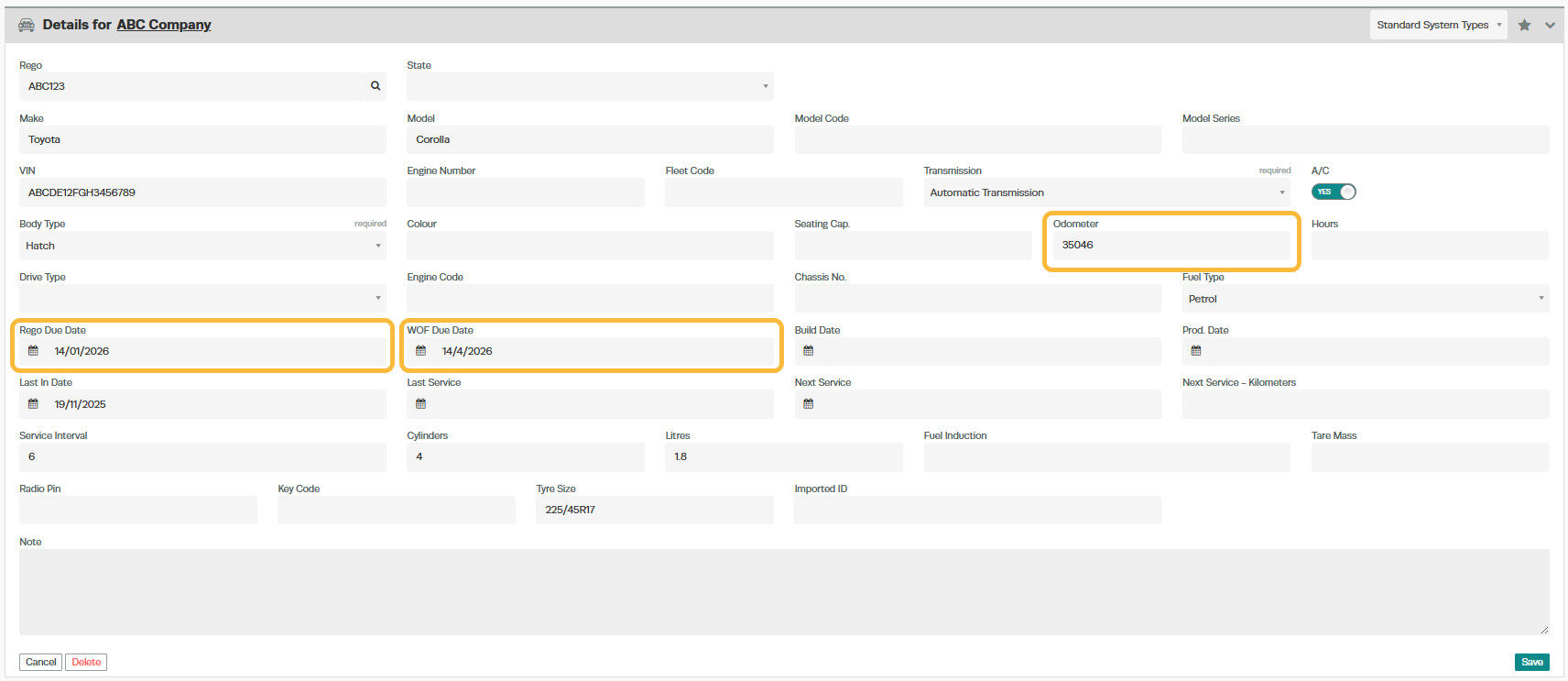
The information will now be updated in the vehicle profile to show the new values you entered.
Good to Know
- You can find this option under Settings > Company Settings in the left-hand menu.
- Make sure you click Save after making your changes. If you navigate away before saving, your changes will be lost.
- This setting can be toggled on or off at any time. The change takes effect immediately once you click Save.
Frequently Asked Questions
Where do I find this setting in Workshop Software?
Go to Settings in the left-hand menu, then click Company Settings. Scroll down to find the relevant option described in the steps above.
Can I change this setting back later?
Yes. This setting can be changed at any time by following the same steps and adjusting the option as needed. Remember to click Save after making your change.
Related Articles
- Update a vehicles next service due date
- How to run the service due report
- Find our Help guides and resources
