 Skip to content
Building on the steps outlined in How to Create a Booking in Workshop Software, this article provides a faster method for creating bookings when you already have a customer or vehicle in the system. This streamlined process ensures efficiency when handling repeat customers or frequent bookings.
Creating a booking using the main search bar
Creating a Booking Using the Main Search Bar
If you are on any page in Workshop Software and not on the Booking Diary page, you can quickly create a booking using the main search bar.
-
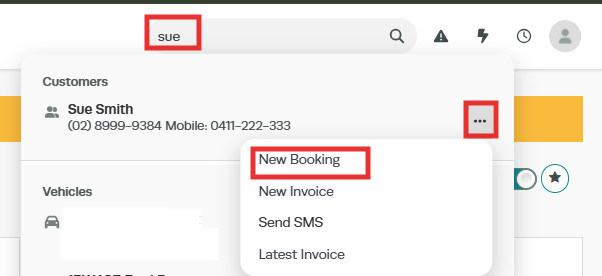
Search for an existing customer or vehicle using the main search bar by entering the vehicle registration number or the customer’s name.
-
Once you locate the correct customer or vehicle, click the three dots next to their name and select New Booking.
Note: This step automatically brings the customer and vehicle details into the booking form, saving you time.
3) You can adjust the Booking Details, by changing the booking date if necessary (the system defaults to today’s date), and you can also enter a brief description of the work required.
4) If a default Labour line is set up in your system, it will automatically appear in the booking. You can also update the Quantity (Qty) field to reflect the estimated time required for the job. For example, adjust the hours if the default is set to 1 hour and the job will take longer, and enter Notes for the Mechanic (optional) using the Job Card Notes section.
5) Click the Save button at the bottom right corner of the screen to complete the process.


Creating a booking from the Booking Diary page
If you are on the Booking Diary page, you can quickly create a booking with these steps:
From the Booking Diary page, click either the ‘+‘ icon in the top-right hand corner of the booking diary to Add an Event. Alternatively, you can click on the ‘+‘ in the top left hand corner of the date you wish to make a booking.

This action will open the Customer Booking page where you will be able to Select or Add Customer and Vehicle Details and follow the steps outlined in How to Create a Booking in Workshop Software. Once all details are complete, click Save to confirm the booking.
