This article will help you integrate and understand the PartsTech labor guides integration (For North American users only)
PartsTech is an online system that allows you to integrate with your local parts suppliers, search and order parts. The PartsTech system is free, if you would like to add labor guides this is $60 paid through your Workshop Software subscription.
PartsTech labor guides will allow you to accurately search for labor times for particular jobs and add these labor items to your invoice/quote.
1. To integrate your PartsTech labor guides you will first need a free PartsTech account, please go to partstech.com to register for an account. Or get in touch with PartsTech via this website for more info or help on how PartsTech operates. You do not need to pay for labor through PartsTech this is paid directly through your Workshop Software subscription. Please see this guide on using PartsTech for parts searching and ordering: https://staging.workshopsoftware.com/knowledge-base/automotive-integrations/how-to-integrate-partstech/
2. To turn on PartsTech labor, please navigate to your ‘Integrations tab’ select ‘Automotive Integrations’ and then ‘PartsTech’:
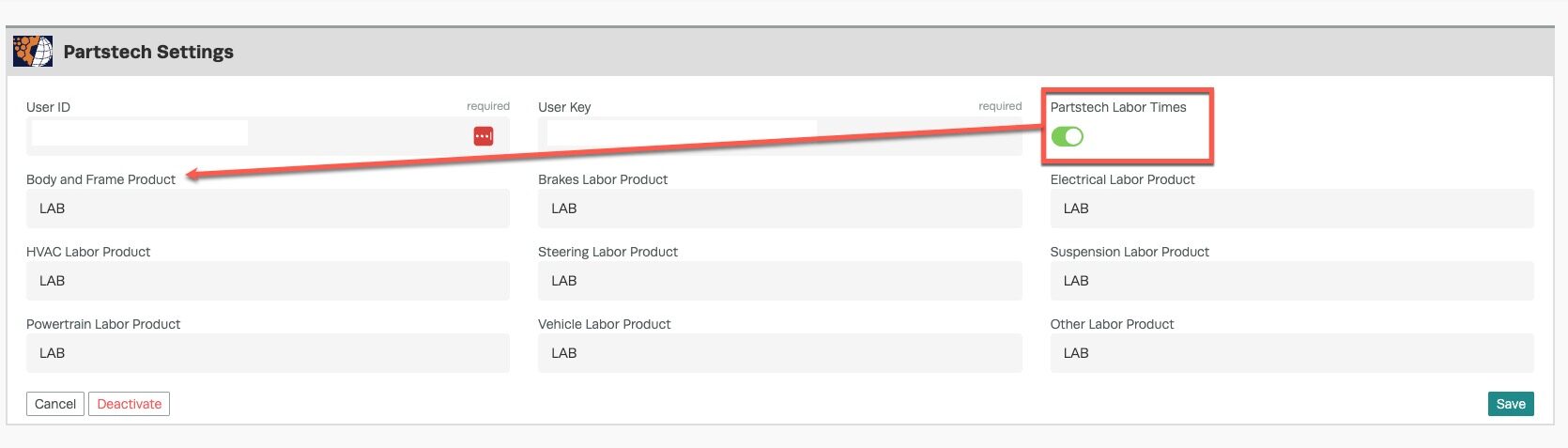
3. You will see your credentials for PartsTech that you have previously entered and to the right you will see ‘PartsTech Labor Times’, toggle this to the green.
*IMPORTANT* This will not turn on your labor guides yet. You need to send us an email to support@workshopsoftware.com with the subject ‘Activate PartsTech Labor Guides’ and your Workshop Software subscription ID, PartsTech ‘User ID’ and Address. A Workshop Software representative will add the PartsTech labor charge to your account and activate your labor through PartsTech and let you know once this has been done.
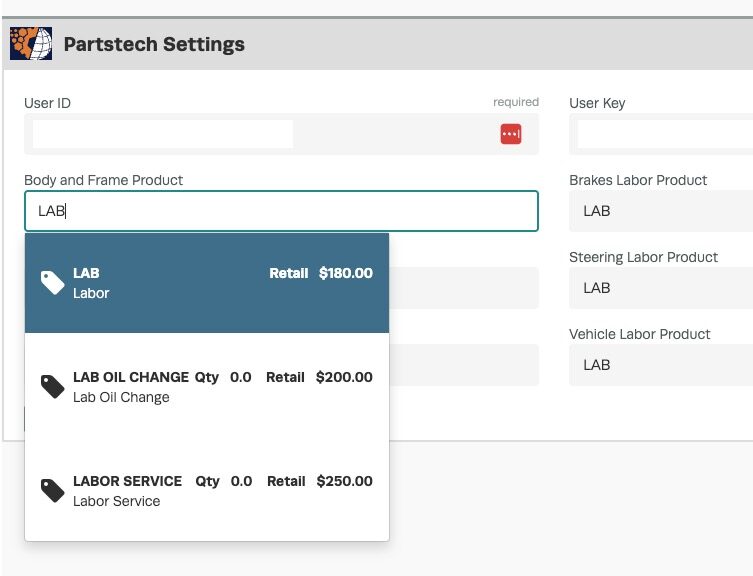
4. You will need to put in a labor product for each of the options available. You can put the same labor product for each or if you would like to differentiate between (for example) a brake job and an electrical for different pricing you can add different labor products. If these products do not exist in your system you will need to add them before you can input them in your integration field.
5. Make sure to save what you have entered.
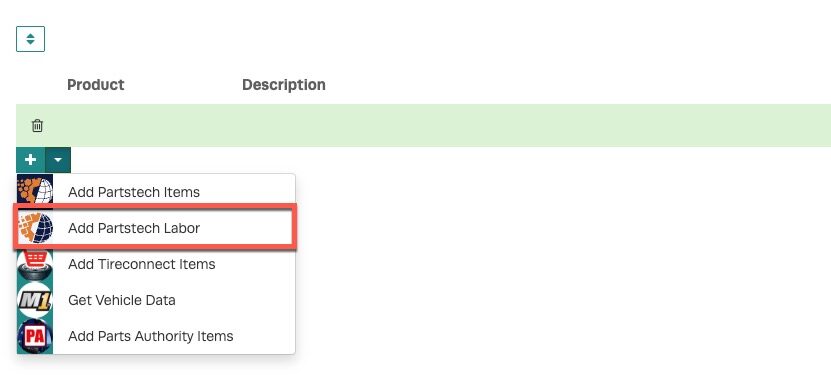
6. You are now set up and integrated, navigate to an invoice or quote and press on the integration drop down arrow:
invoice or quote and press …” width=”831″ height=”391″>
7. You will now see the ‘Add PartsTech Labor’, Please note that this is for labor only, the above ‘Add PartsTech Items’ is for the PartsTech parts search and ordering.
Click on ‘Add PartsTech Labor’:
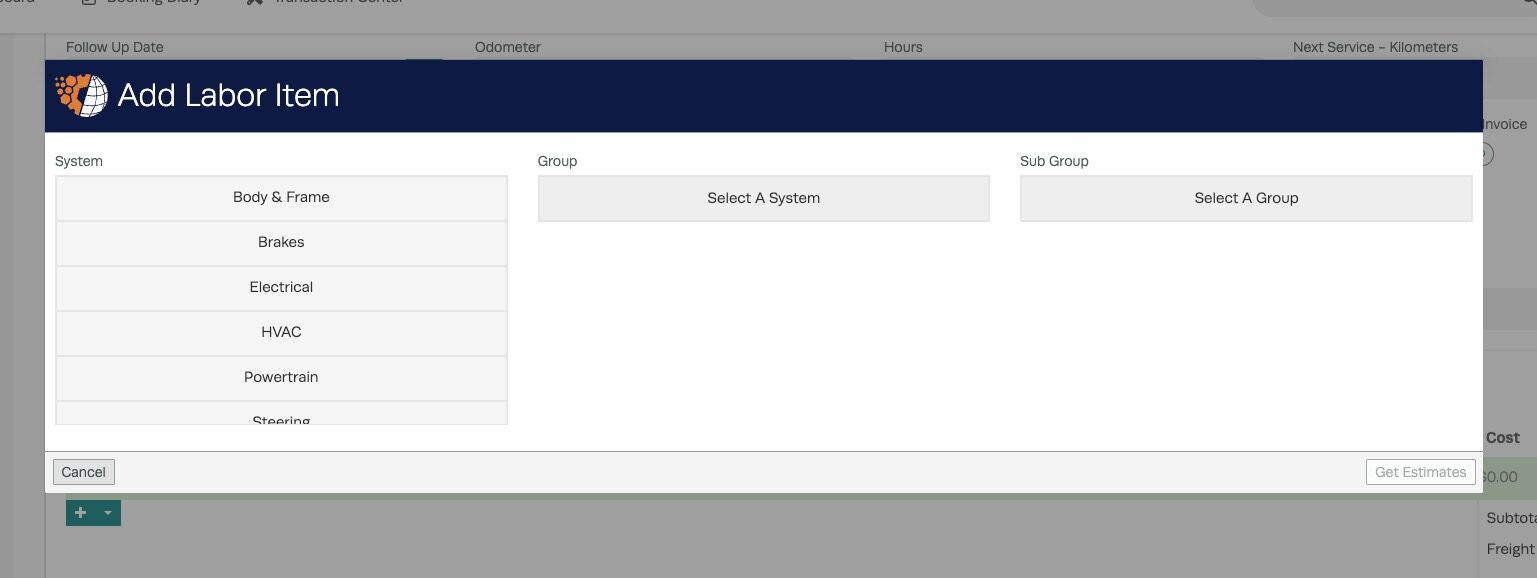
8. Note you will need to have a VIN number or a Licence plate in order for the integration to recognise the vehicle. It uses a decoder so that the most accurate information can be provided. The best way to easily have all your vehicle details in Workshop Software is to use our Carfax integration, see more about Carfax here: https://staging.workshopsoftware.com/knowledge-base/automotive-integrations/integrate-carfax/
9. Once you have selected the labor you are wanting simply press ‘Get Estimates’:
10. You will then see the options for the different labor times to add:
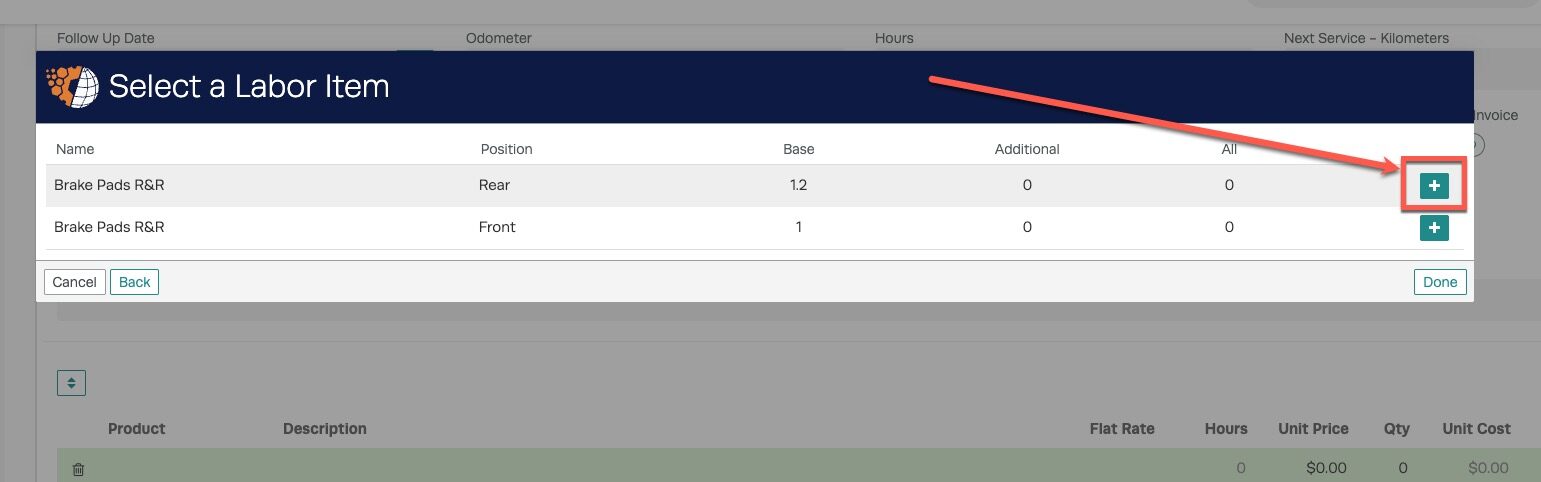
11. Press on the ‘Plus’ Button on the right:
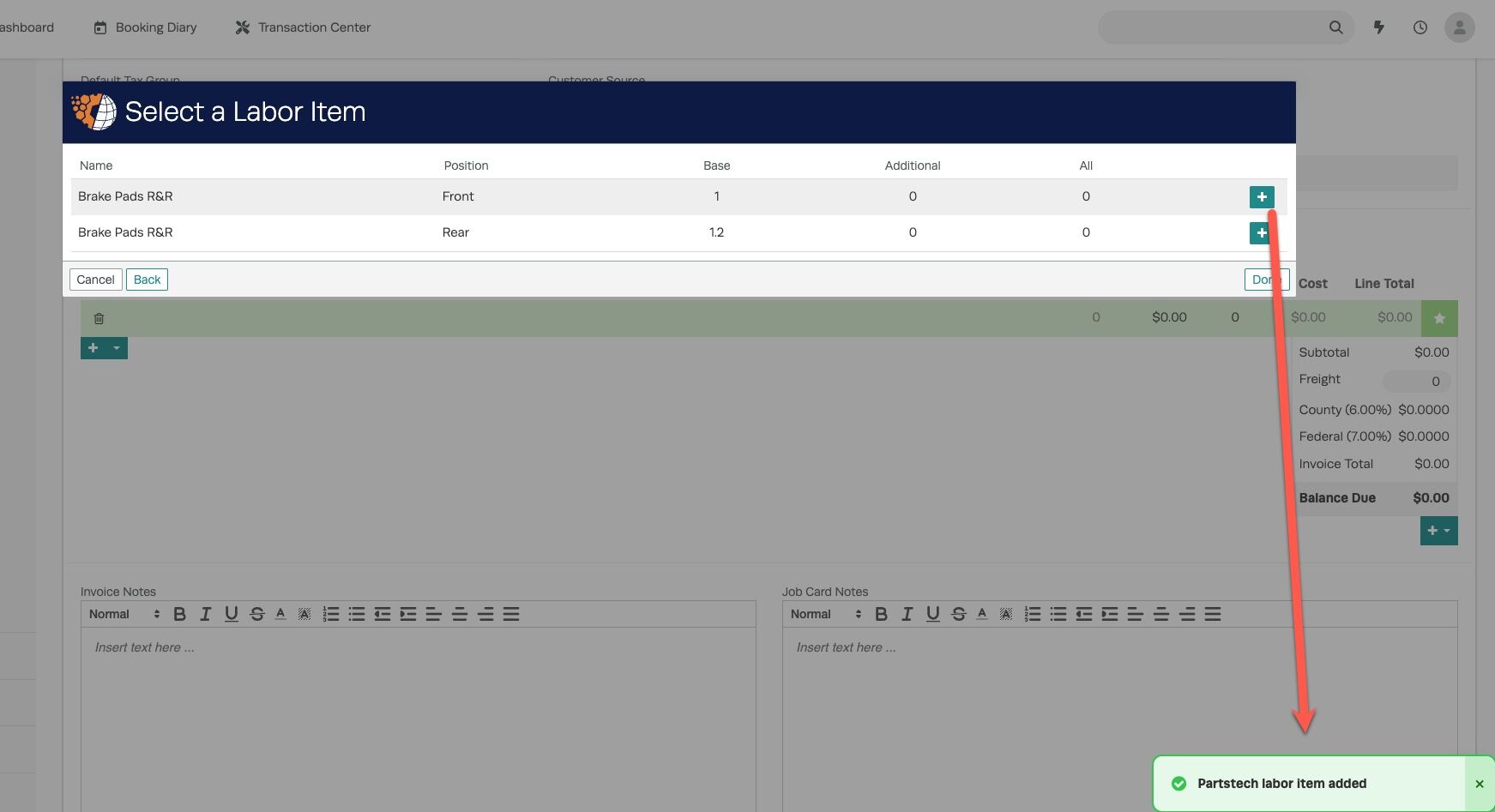
12. Once you add the times an alert will come up saying that this has been added, you can then go back and add more times or press ‘Done’ and this will take you back to the invoice.
13.Your labor times will now be added to your invoice with the correct quantity charged against your hourly rate entered in your labor line.
 Skip to content

 3. You will see your credentials for PartsTech that you have previously entered and to the right you will see ‘PartsTech Labor Times’, toggle this to the green.
*IMPORTANT* This will not turn on your labor guides yet. You need to send us an email to support@workshopsoftware.com with the subject ‘Activate PartsTech Labor Guides’ and your Workshop Software subscription ID, PartsTech ‘User ID’ and Address. A Workshop Software representative will add the PartsTech labor charge to your account and activate your labor through PartsTech and let you know once this has been done.
3. You will see your credentials for PartsTech that you have previously entered and to the right you will see ‘PartsTech Labor Times’, toggle this to the green.
*IMPORTANT* This will not turn on your labor guides yet. You need to send us an email to support@workshopsoftware.com with the subject ‘Activate PartsTech Labor Guides’ and your Workshop Software subscription ID, PartsTech ‘User ID’ and Address. A Workshop Software representative will add the PartsTech labor charge to your account and activate your labor through PartsTech and let you know once this has been done.
 4. You will need to put in a labor product for each of the options available. You can put the same labor product for each or if you would like to differentiate between (for example) a brake job and an electrical for different pricing you can add different labor products. If these products do not exist in your system you will need to add them before you can input them in your integration field.
 5. Make sure to save what you have entered.
6. You are now set up and integrated, navigate to an invoice or quote and press on the integration drop down arrow:
5. Make sure to save what you have entered.
6. You are now set up and integrated, navigate to an invoice or quote and press on the integration drop down arrow:
 invoice or quote and press …” width=”831″ height=”391″>
7. You will now see the ‘Add PartsTech Labor’, Please note that this is for labor only, the above ‘Add PartsTech Items’ is for the PartsTech parts search and ordering.
Click on ‘Add PartsTech Labor’:
invoice or quote and press …” width=”831″ height=”391″>
7. You will now see the ‘Add PartsTech Labor’, Please note that this is for labor only, the above ‘Add PartsTech Items’ is for the PartsTech parts search and ordering.
Click on ‘Add PartsTech Labor’:
 8. Note you will need to have a VIN number or a Licence plate in order for the integration to recognise the vehicle. It uses a decoder so that the most accurate information can be provided. The best way to easily have all your vehicle details in Workshop Software is to use our Carfax integration, see more about Carfax here: https://staging.workshopsoftware.com/knowledge-base/automotive-integrations/integrate-carfax/
9. Once you have selected the labor you are wanting simply press ‘Get Estimates’:
8. Note you will need to have a VIN number or a Licence plate in order for the integration to recognise the vehicle. It uses a decoder so that the most accurate information can be provided. The best way to easily have all your vehicle details in Workshop Software is to use our Carfax integration, see more about Carfax here: https://staging.workshopsoftware.com/knowledge-base/automotive-integrations/integrate-carfax/
9. Once you have selected the labor you are wanting simply press ‘Get Estimates’:
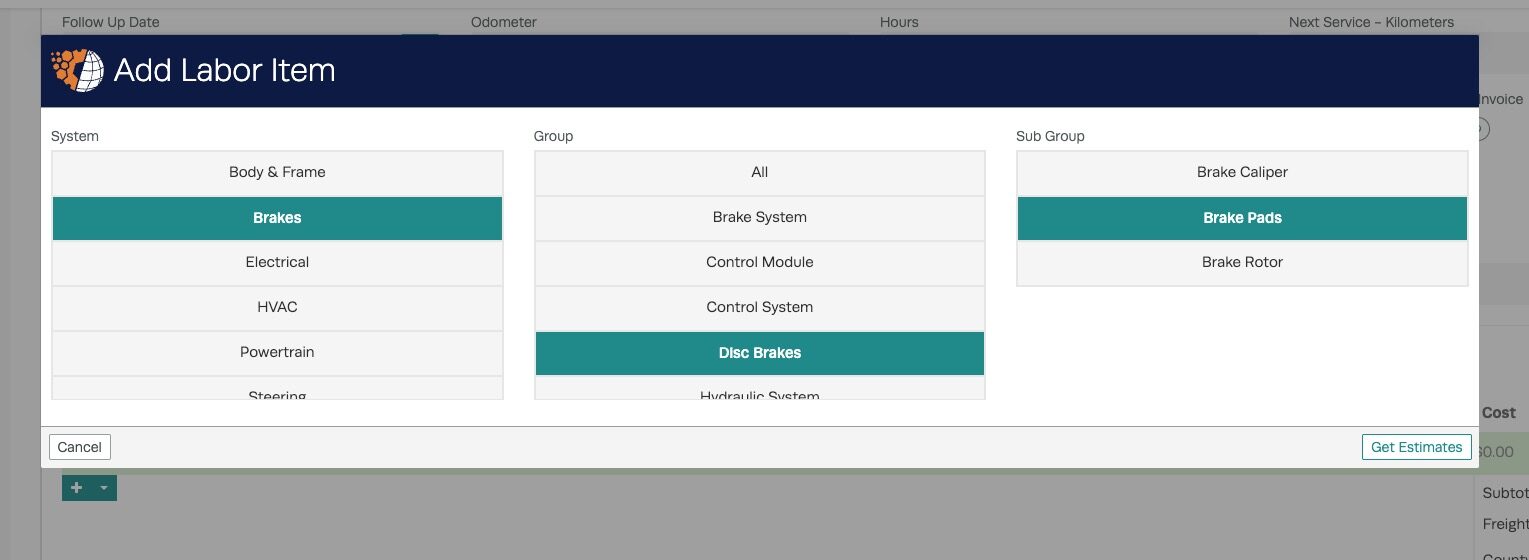 10. You will then see the options for the different labor times to add:
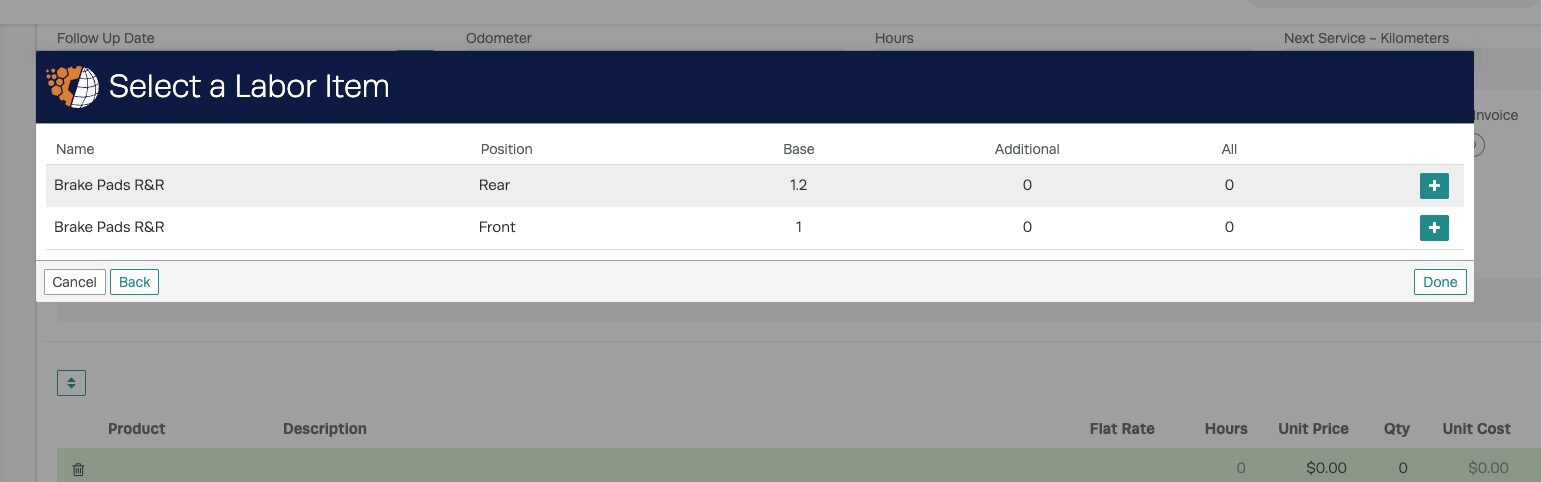 11. Press on the ‘Plus’ Button on the right:
 12. Once you add the times an alert will come up saying that this has been added, you can then go back and add more times or press ‘Done’ and this will take you back to the invoice.
 13.Your labor times will now be added to your invoice with the correct quantity charged against your hourly rate entered in your labor line.

