Skip to content
Xero has advised that all customers integrated with their platform must now have Two-Factor Authentication (2FA) enabled. As a result, any Workshop Software user integrated with Xero will be required to activate 2FA—this applies to all users, regardless of access level (e.g., Admin, Invoice & Payment Only, Mechanic, or Sales).This does not apply to Mobile Users.
As a result, Workshop Software will rollout an update that will enforce 2FA for all sites integrated with Xero. All integrated systems must set-up 2FA before this update otherwise you may have difficulty accessing your system.
Before This Feature Is Rolled Out
To ensure a smooth transition and avoid login issues, please review the following:
- Valid Email Address:
Make sure that the username you use to log in is associated with a valid and accessible email address. This is crucial, as the 2FA code will be sent to that email. - SMS Option:
If you prefer to receive the code via SMS, ensure that:
- Your User has a valid mobile number linked to it.
- You have available SMS in your Workshop Software account.
To ensure your login credentials and two factor authentication (2FA) settings are properly configured in Workshop Software, please follow the steps below carefully:
1. Verifying and Updating Your Email Address
Navigate to:
Settings > User Setup/Maintenance
- Click the pencil icon next to the user profile you wish to review.
- Confirm that the email address listed is accurate and accessible.
- If an update is required, delete the existing email and enter the new, valid email address.
Click Save to apply the changes.
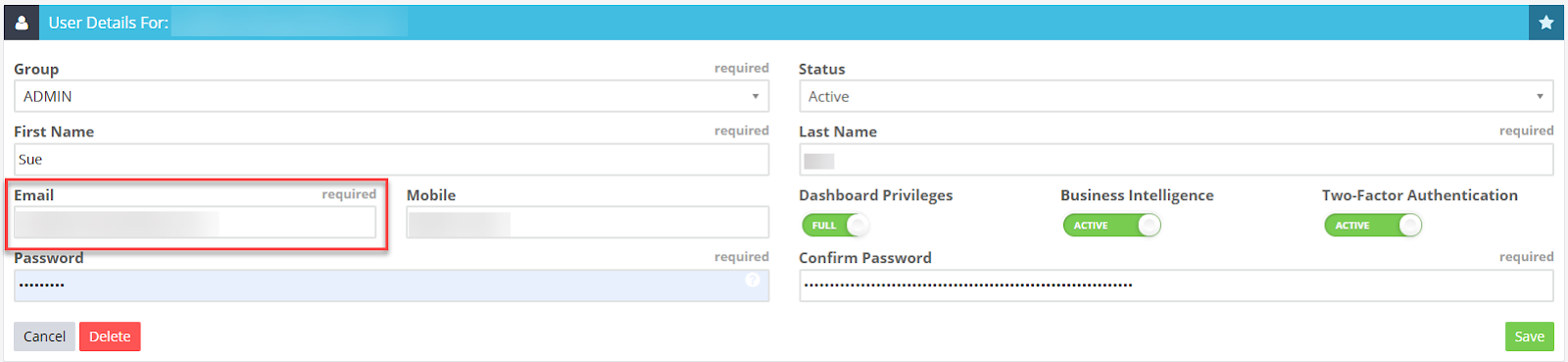
Important: After updating the email, all future login attempts must use this new address.
2. Managing Shared Access and Role-Based Permissions
If multiple individuals (e.g., mechanics, accountants, bookkeepers) are using the same login credentials:
- This is strongly discouraged due to security and audit trail concerns.
- Each individual should be set up with their own unique user login.
- To arrange new user access, please contact your Account Manager who will guide you through the provisioning process based on user roles and required permissions.
3. Enabling SMS for 2FA Authentication
To receive authentication codes via SMS:
- Go to Settings > User Setup/Maintenance
- Click the pencil icon next to the user
- Enter a valid mobile phone number into the appropriate field
Click Save
 How to Enable and Use 2FA. This article explains the benefits of Two-Factor Authentication and provides step-by-step instructions to help you get set up quickly and securely.
 Should you encounter any issues during this setup or require further clarification regarding user management, security protocols, or 2FA configuration, don’t hesitate to contact us