 Skip to content
Integrating Order And Purchase Parts From Burson with Workshop Software connects the two systems so data flows between them without manual entry. Once set up, this integration saves time and reduces the chance of errors when working across platforms. Follow the steps below to configure the integration.
With Burson Integration in Workshop Software, you can efficiently create quotes, check part prices, get customer approval, and order parts without leaving the system. Follow these steps to streamline your workflow.
Overview of the Burson Workflow in Workshop Software
-
Create a Quote or Job
In Workshop Software, create a Quote or Job.
https://staging.workshopsoftware.com/knowledge-base/job-centre-invoicing/how-to-create-a-quote/
Access Burson for Part Selection
From the Job or Quote, click on the Burson icon. This action opens the Burson page, where you can see vehicle details, including the VIN number (if previously entered in the customer’s Quote or Invoice).

Add Parts from Burson to Workshop Software
In Burson, select the parts you need for the job.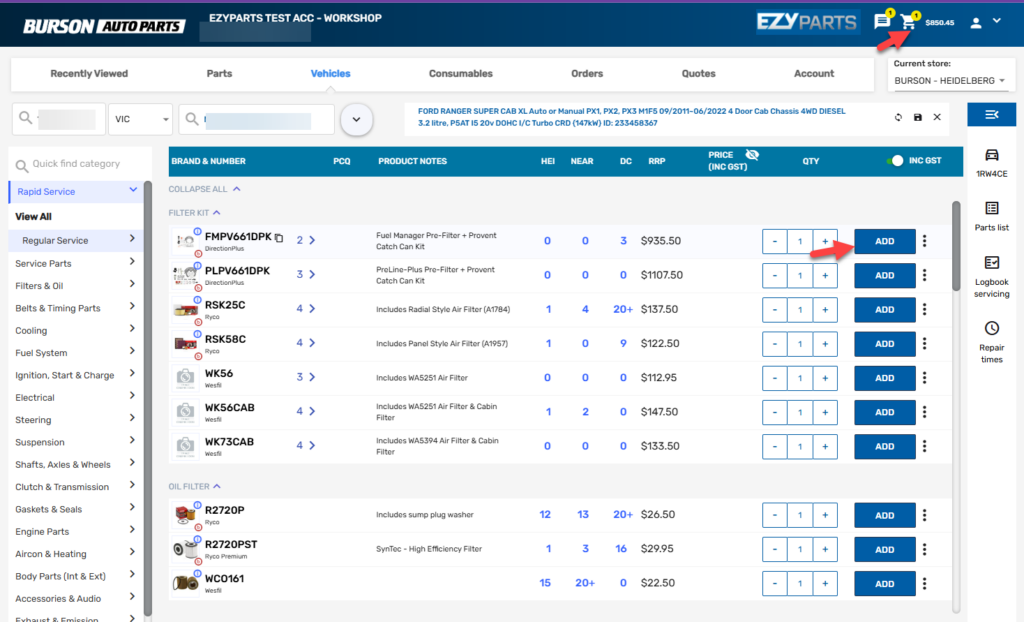
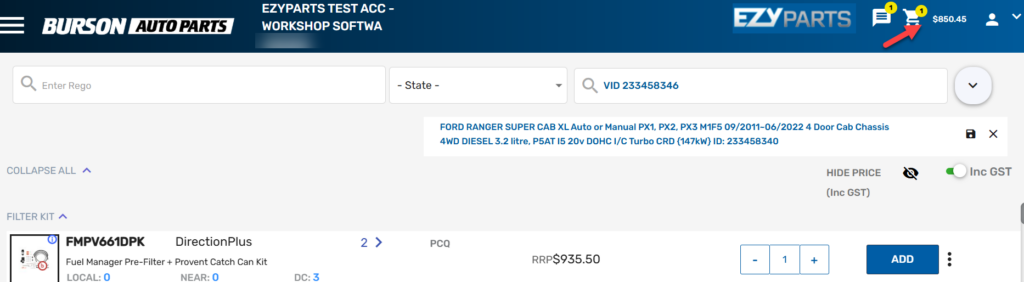
Click on the Shopping Cart icon in the top-right corner.
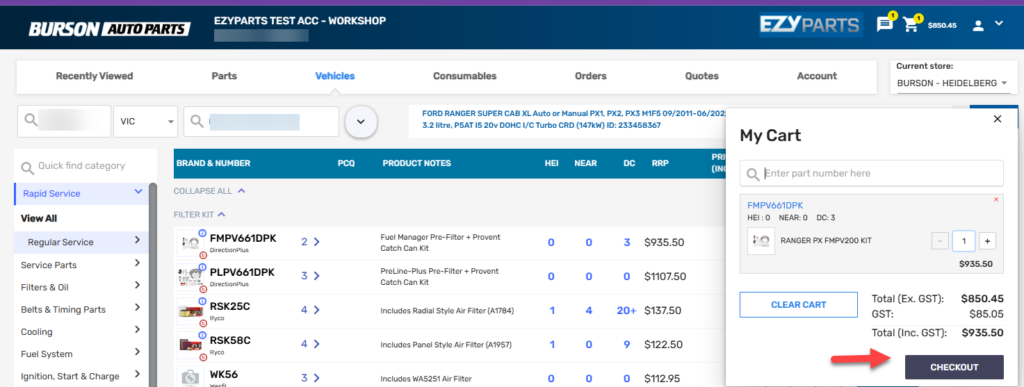
After reviewing your order, click checkout
Then select Send to WMS
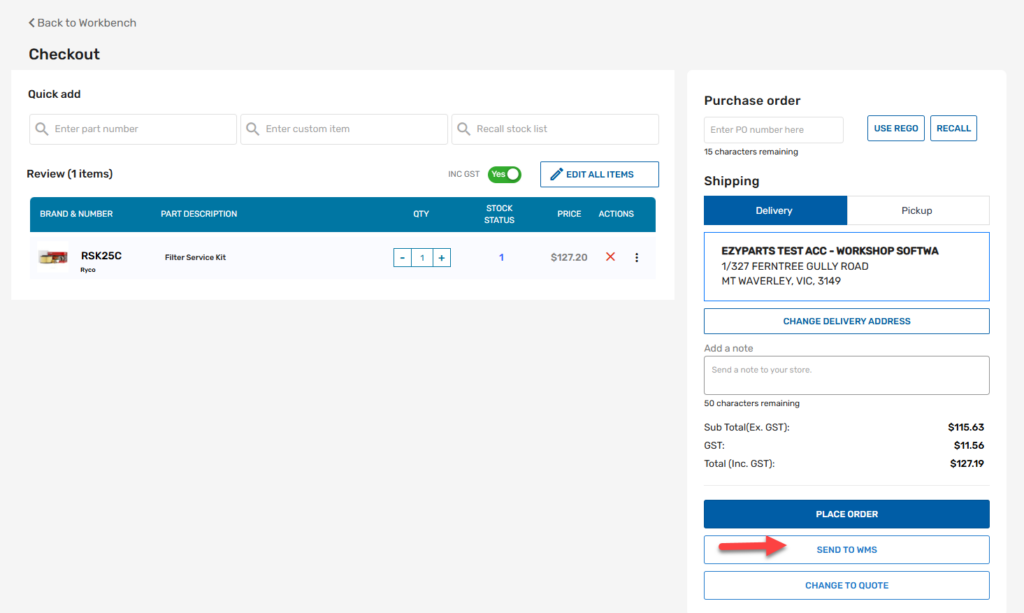
This will automatically add the selected parts to your invoice in Workshop Software then save
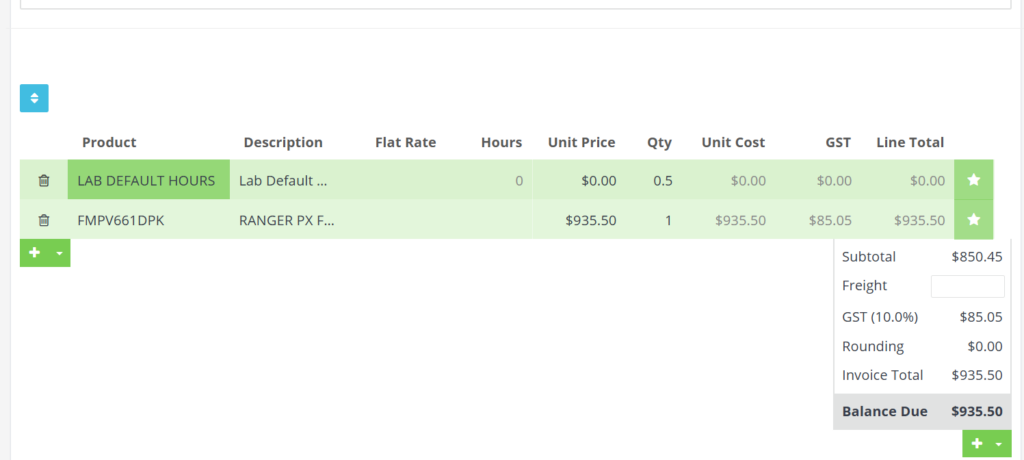
Wait Customer Approval
Once parts are added, review the invoice and obtain customer approval for the Quote or Job as needed
Order Parts from Burson in Workshop Software
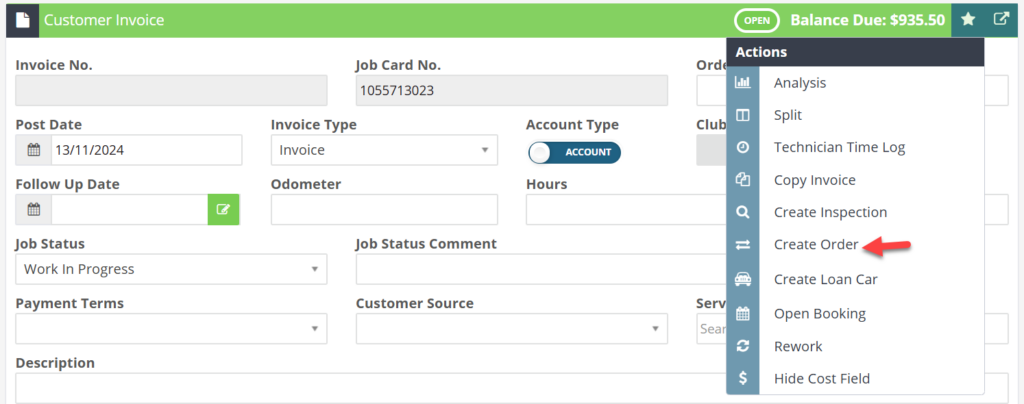
To place the order, click on the star icon next to the print/email option on the invoice

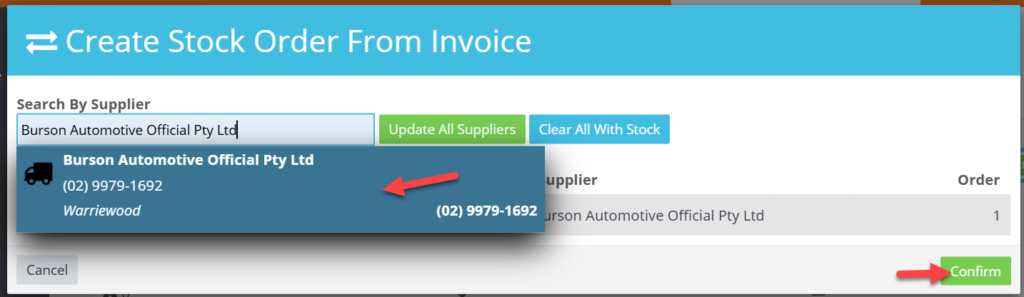
Select Create Order and choose Burson as your Supplier
Select the parts you would like to order and then confirm
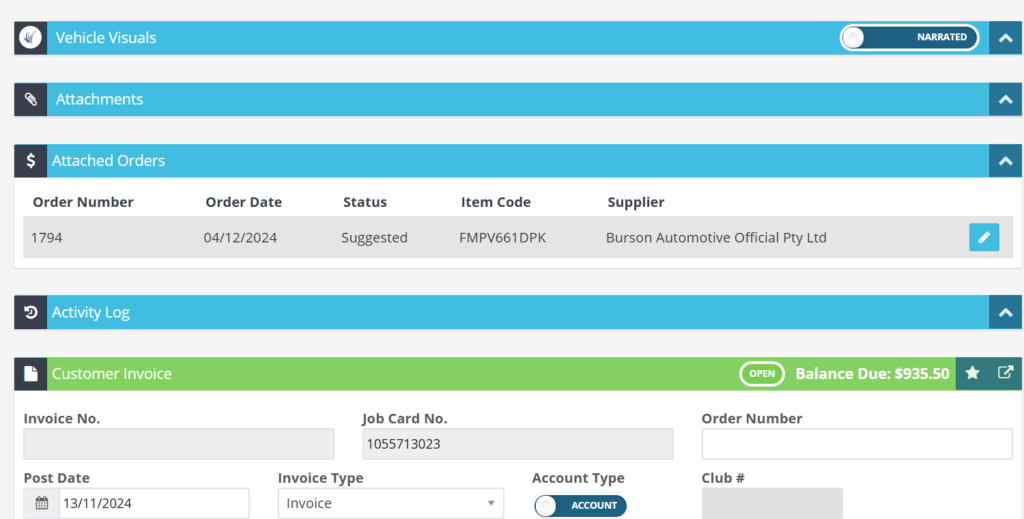
You will then see the attached order above the Customer invoice
Send Order to Burson for Processing
Open the Order you have created by pressing on the blue Pencil

Press on the Action Star next to Amount

Then select send order and process
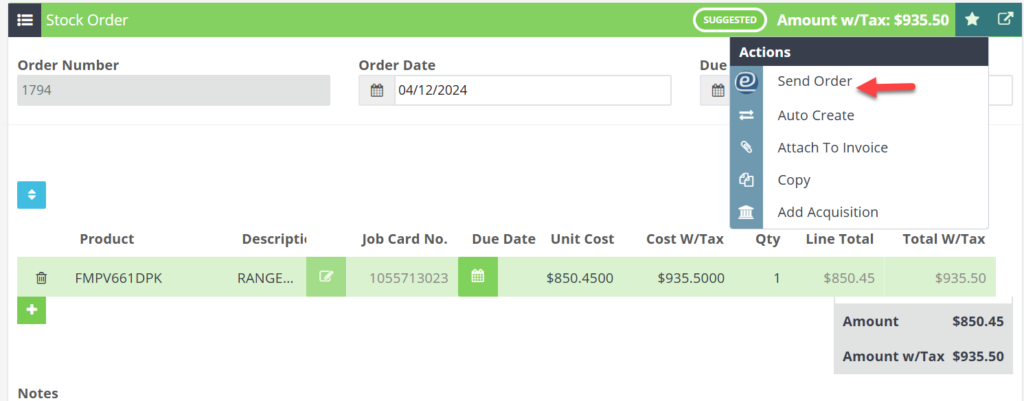
This will then take you back to Burson to then complete the order
Good to Know
- Make sure you click Save after making your changes. If you navigate away before saving, your changes will be lost.
- If you experience any issues during setup, contact the Workshop Software support team for assistance.
Frequently Asked Questions
Will this change affect existing invoices that already include this product?
No. Existing invoices and job cards retain the product details as they were at the time the invoice was created. This change only applies when the product is used on future invoices.
Will this affect existing supplier invoices or purchase orders?
Changes to supplier details apply going forward. Existing supplier invoices and purchase orders retain the information that was recorded at the time they were created.
What do I do if the integration is not working?
First, check that your credentials are entered correctly and that both systems are accessible. If the issue persists, check the event log in Workshop Software for specific error messages, or contact the Workshop Software support team for assistance.
Also Explore
- Simplified Supplier Management — Feature Overview
- Stock & Inventory Management — Feature Overview
- Workshop University: What Is a Good Average Repair Order?
- Getting Started: Supplier Workflow Guide
Burson auto parts ordering is available exclusively for Australian workshops. Learn more about how Workshop Software supports mechanics across Australia on our Workshop Software Australia page.
