Skip to content
-
- Lubricants & Fluids specifications
-
- Identification Locations for key components
-
- Maintenance Schedules
-
- Repair Times
-
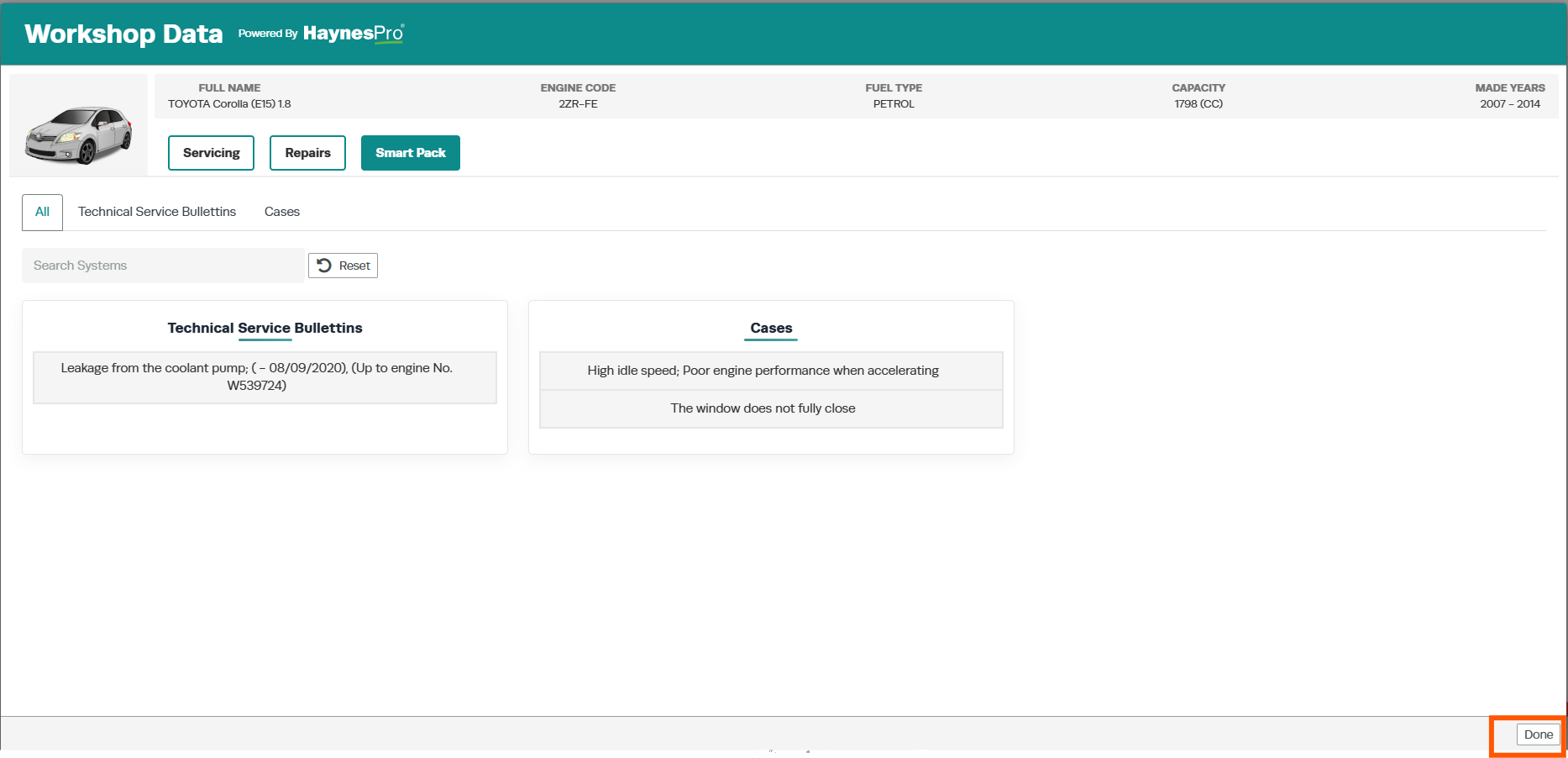
- SmartPACK information for quick and easy access
To Access WorkshopData for a Vehicle
-
- Open the Vehicle Profile for the vehicle you want to view.
-
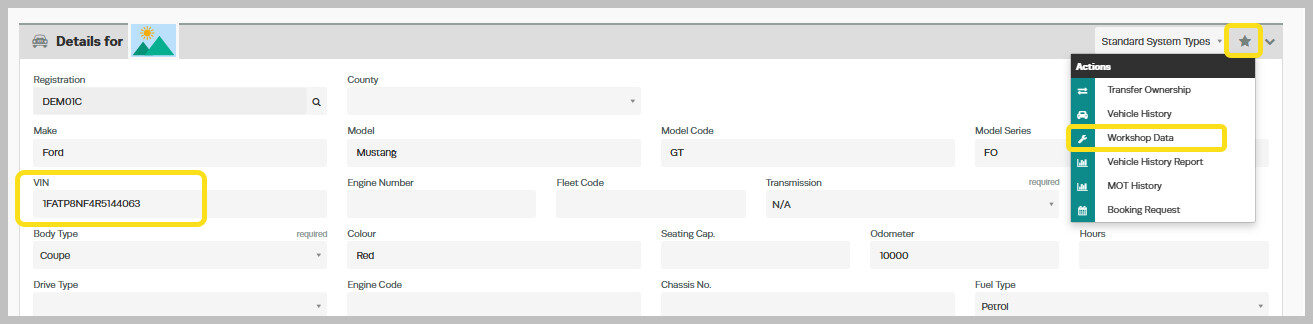
- Click on the Action Star Icon located on the vehicle page.
-
- Select WorkshopData from the list of available options.
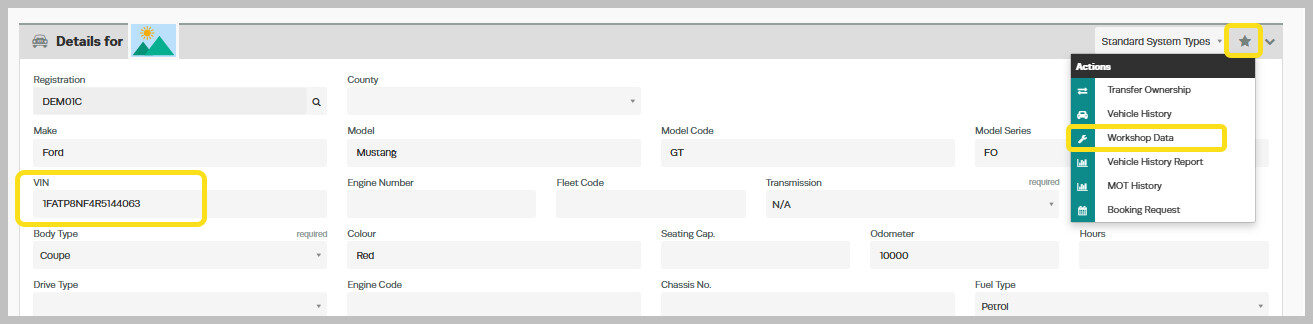
Note: The WorkshopData option will only appear if there is a valid VIN (Vehicle Identification Number) entered for that vehicle.
Ensuring an Accurate VIN
To make sure the VIN is accurate, you can use the Vehicle Lookup feature to pre-populate the vehicle details.-
- This helps ensure that all information — including the VIN — is correct before using WorkshopData.
-
- Please note that the Vehicle Lookup feature is only available for vehicles, not for trucks, light commercial vehicles, or vehicles over 3.5 tonnes.
Search via Make and Model
To search for a vehicle using its make and model:
-
Click the Action Star and select Workshop Data to open the vehicle search.
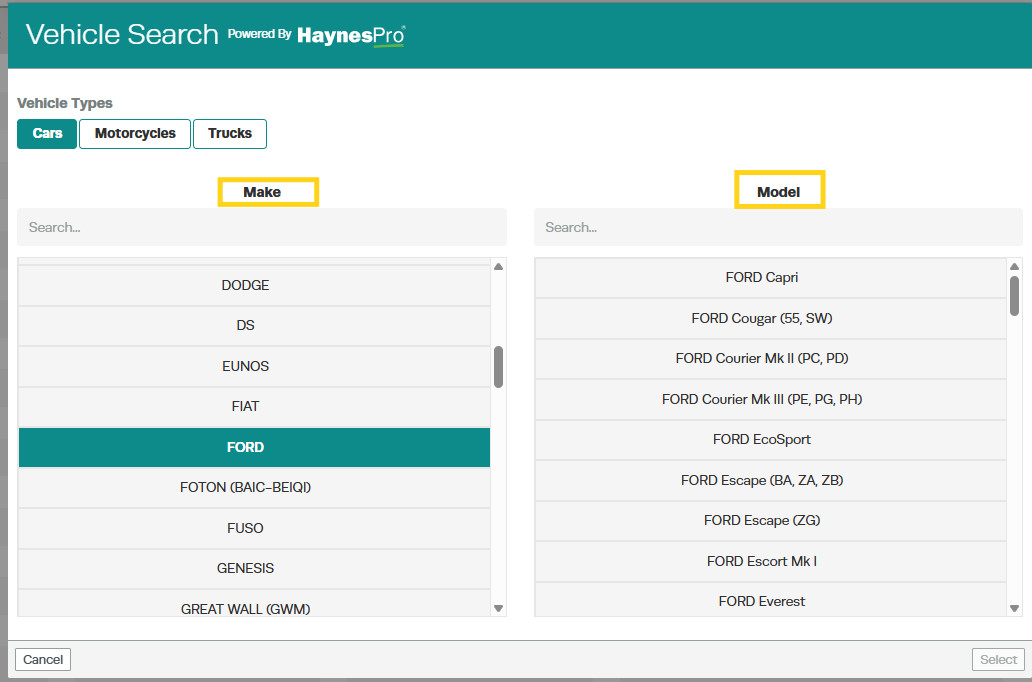
2.Select the vehicle type you want to search for: Car, Motorcycle, or Truck.
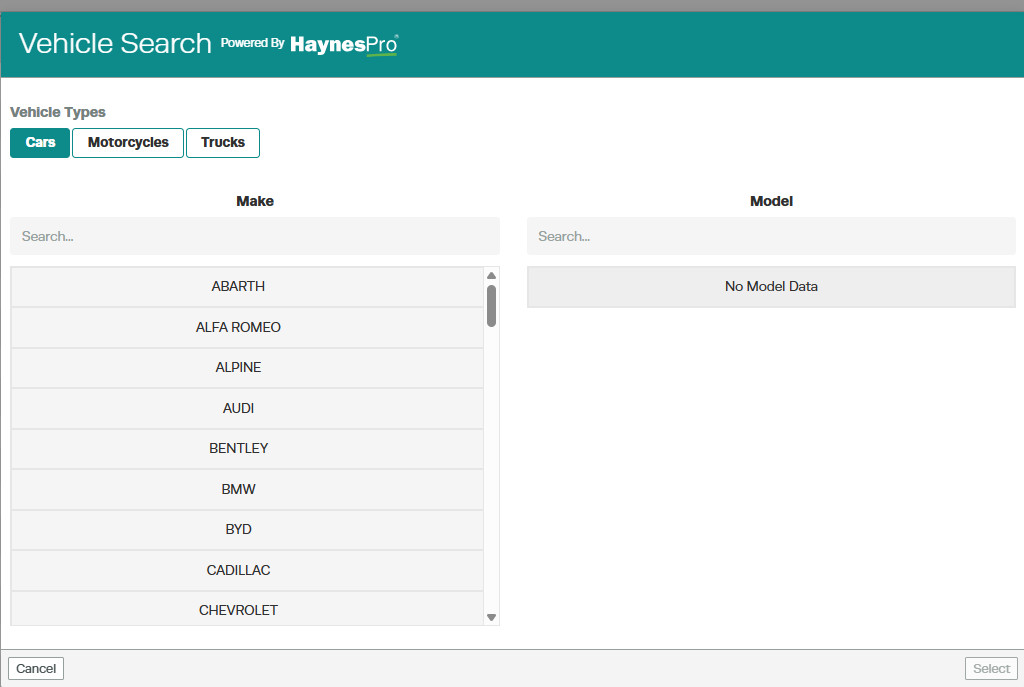
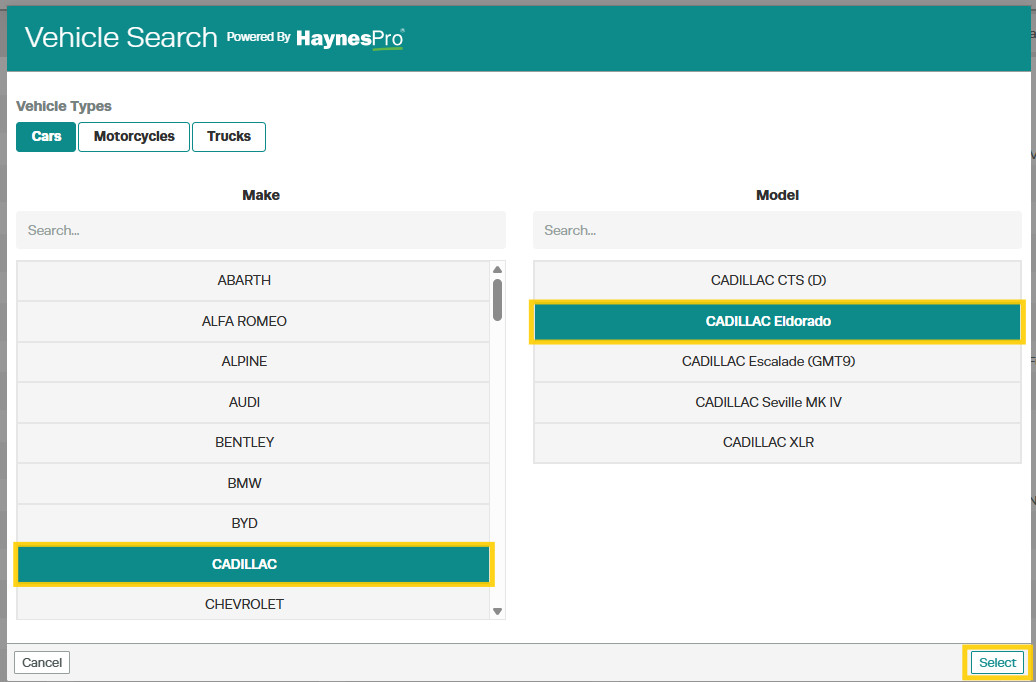
3. Select the Make, then choose the corresponding Model from the list.
-
-
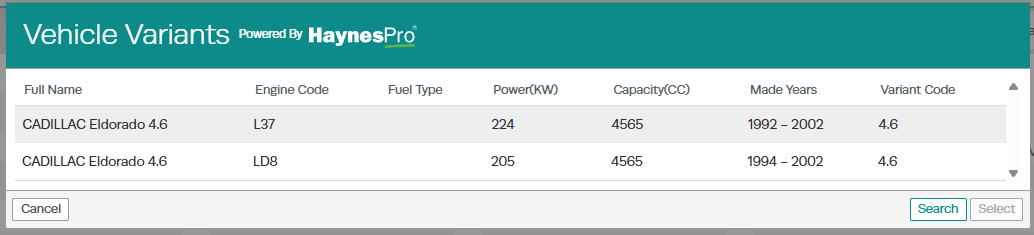
Choose the variant that matches your vehicle.
-
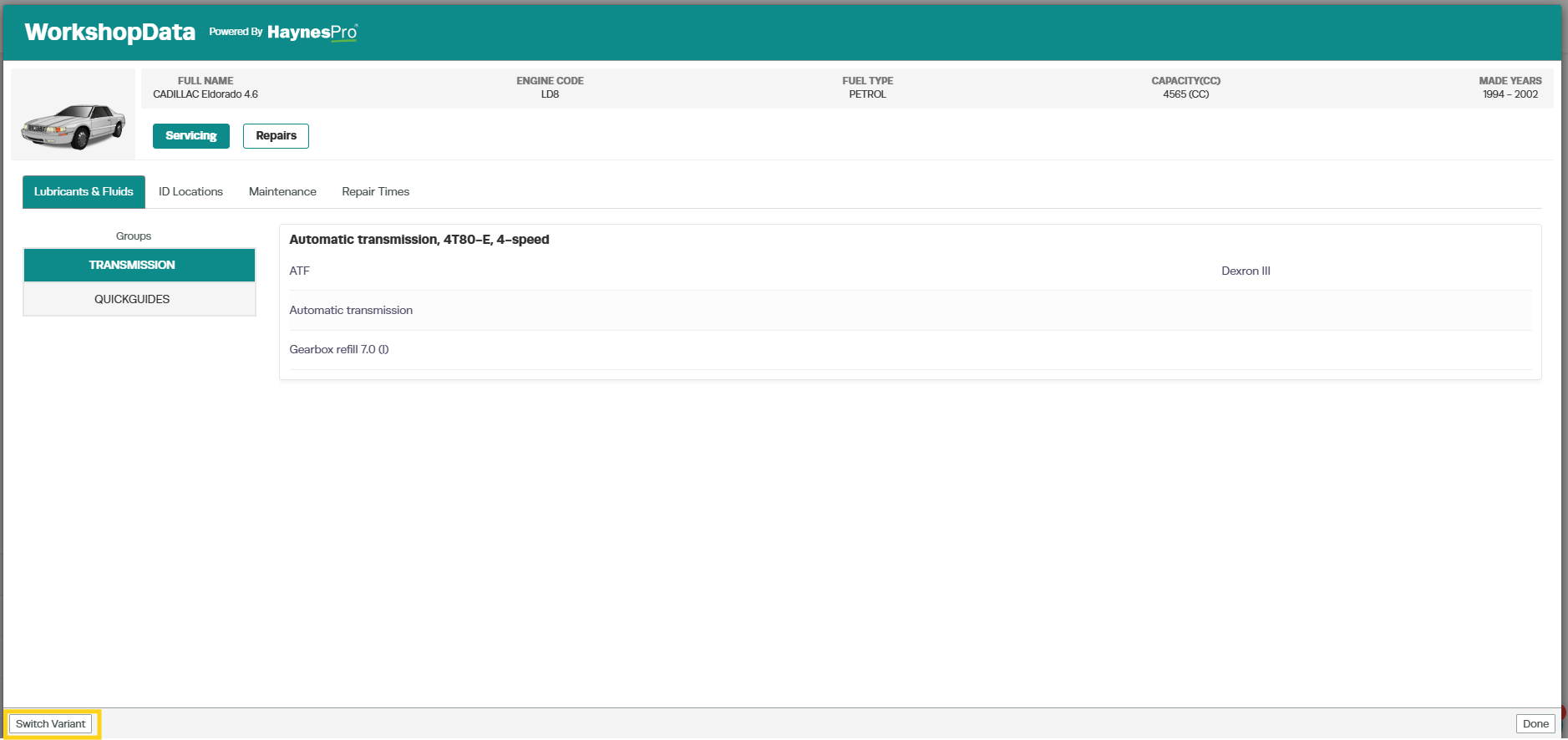
5. Select Switch Variant if the displayed vehicle is not the correct one.
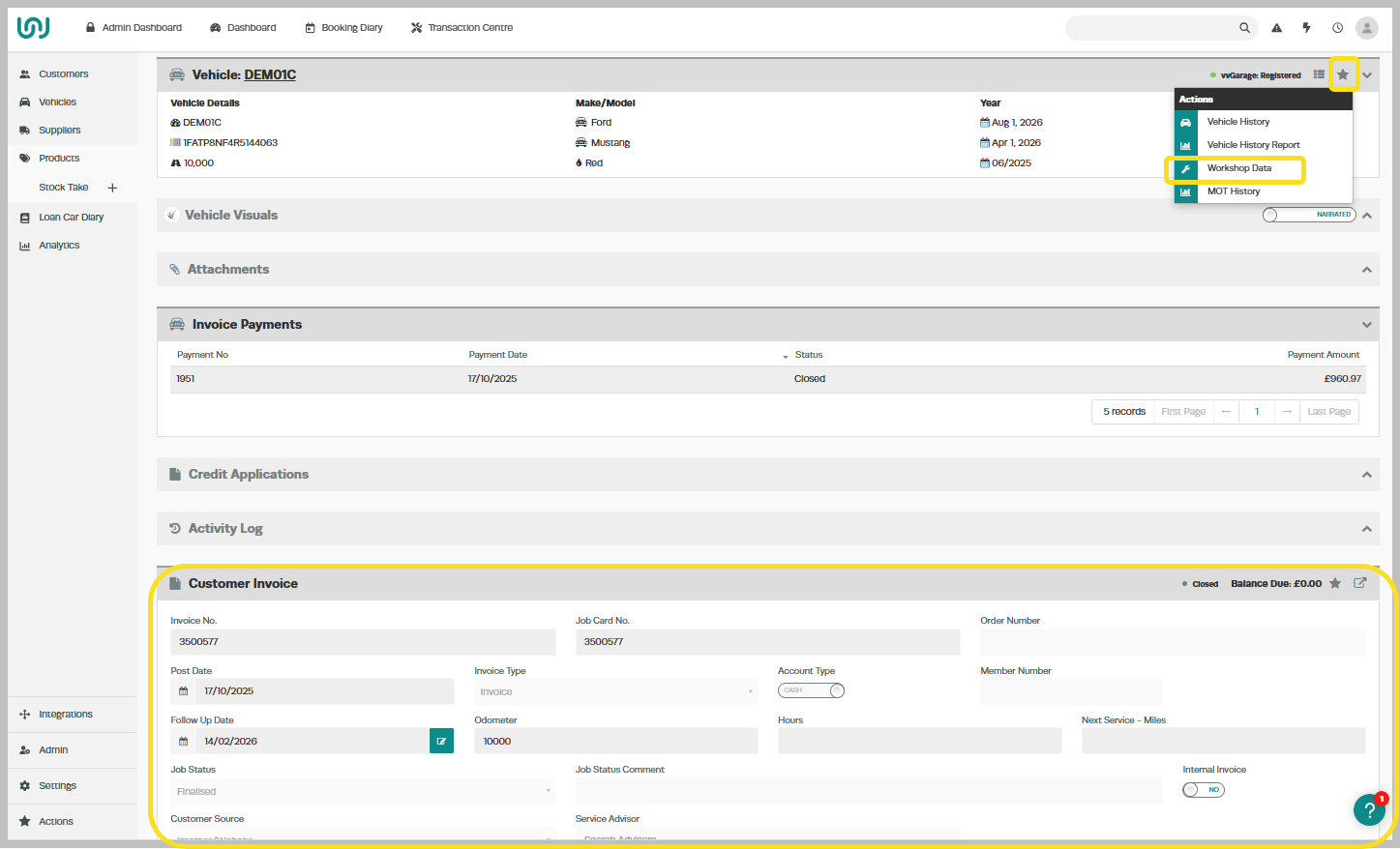
Accessing WorkshopData from an Invoice or Job Card
In addition to the Vehicle Details page, WorkshopData can also be accessed directly from an Invoice or Job Card. This makes it easy to view technical information for a specific vehicle while working on a job.Steps to Access WorkshopData
-
- Open the relevant Invoice or Job Card.
-
- The Invoice or Job Card must have a vehicle with a valid VIN attached.
-
- Open the relevant Invoice or Job Card.
-
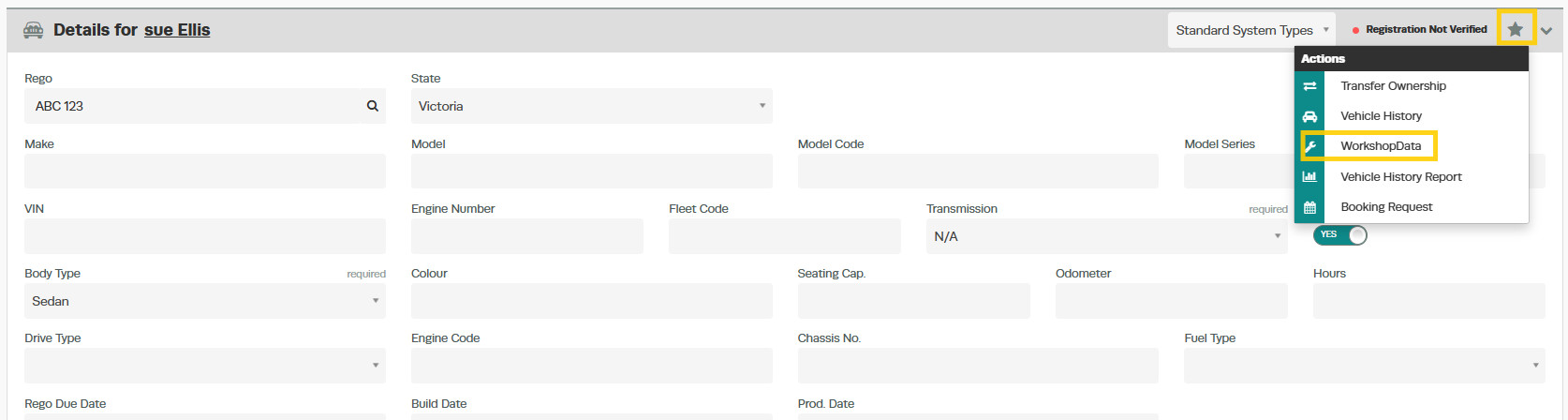
- In the Vehicle Details section, click on the Action Star Icon.
-
- Select WorkshopData.
Important Notes
-
- A valid VIN is required to access WorkshopData features.
-
- If no VIN is entered for the vehicle, the WorkshopData option will not appear in the vehicle options menu.

-
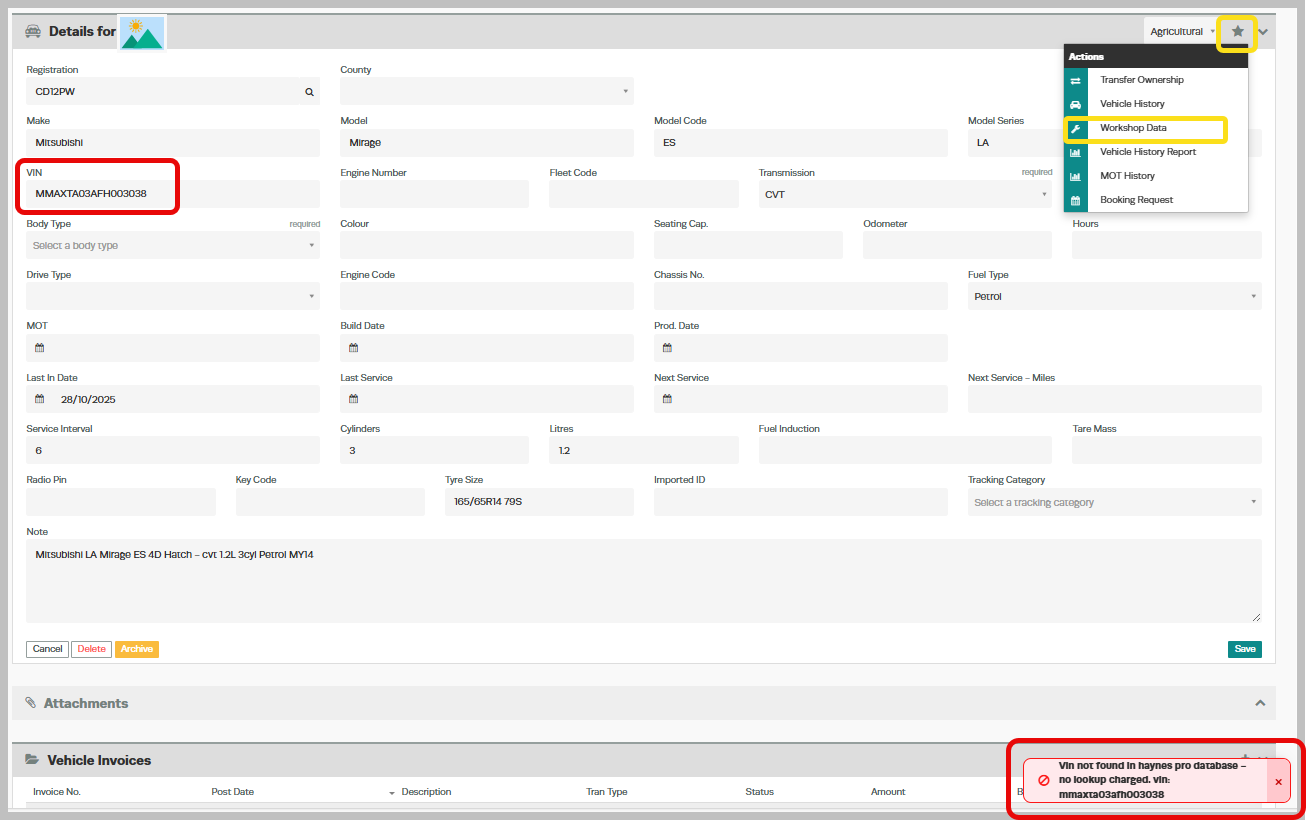
- If the vehicle’s VIN cannot be found in HaynesPro, an error message will display at the bottom of the screen informing you of the issue.
Using the WorkshopData Application
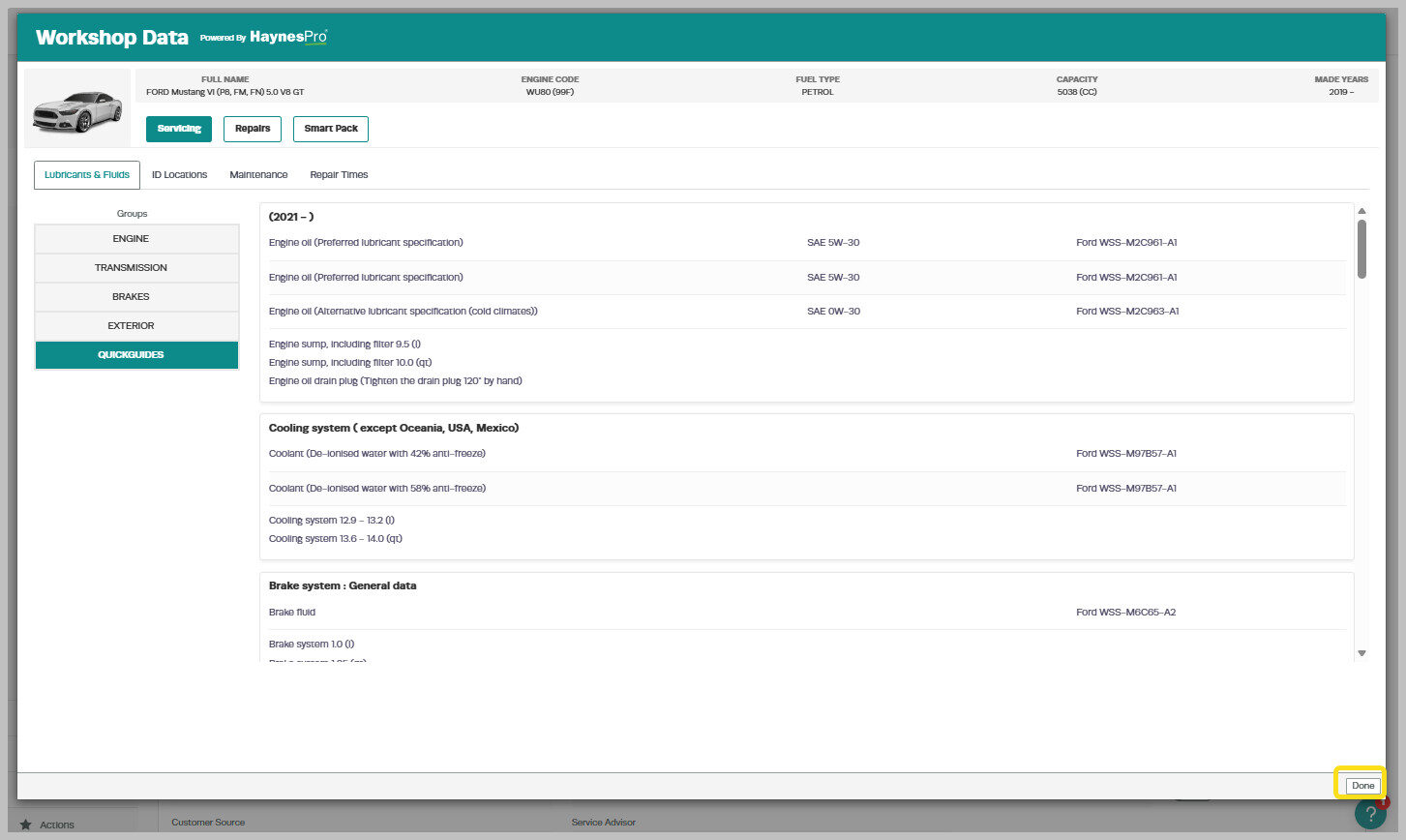
Once the WorkshopData application opens, you can explore a wide range of technical information specific to the vehicle you’re currently repairing. Within the WorkshopData window, you’ll have access to:-
- Repair Manuals
-
- Technical Drawings
-
- Adjustments and Specifications
-
- Preferred Lubricants and Fluids
-
- Repair Times
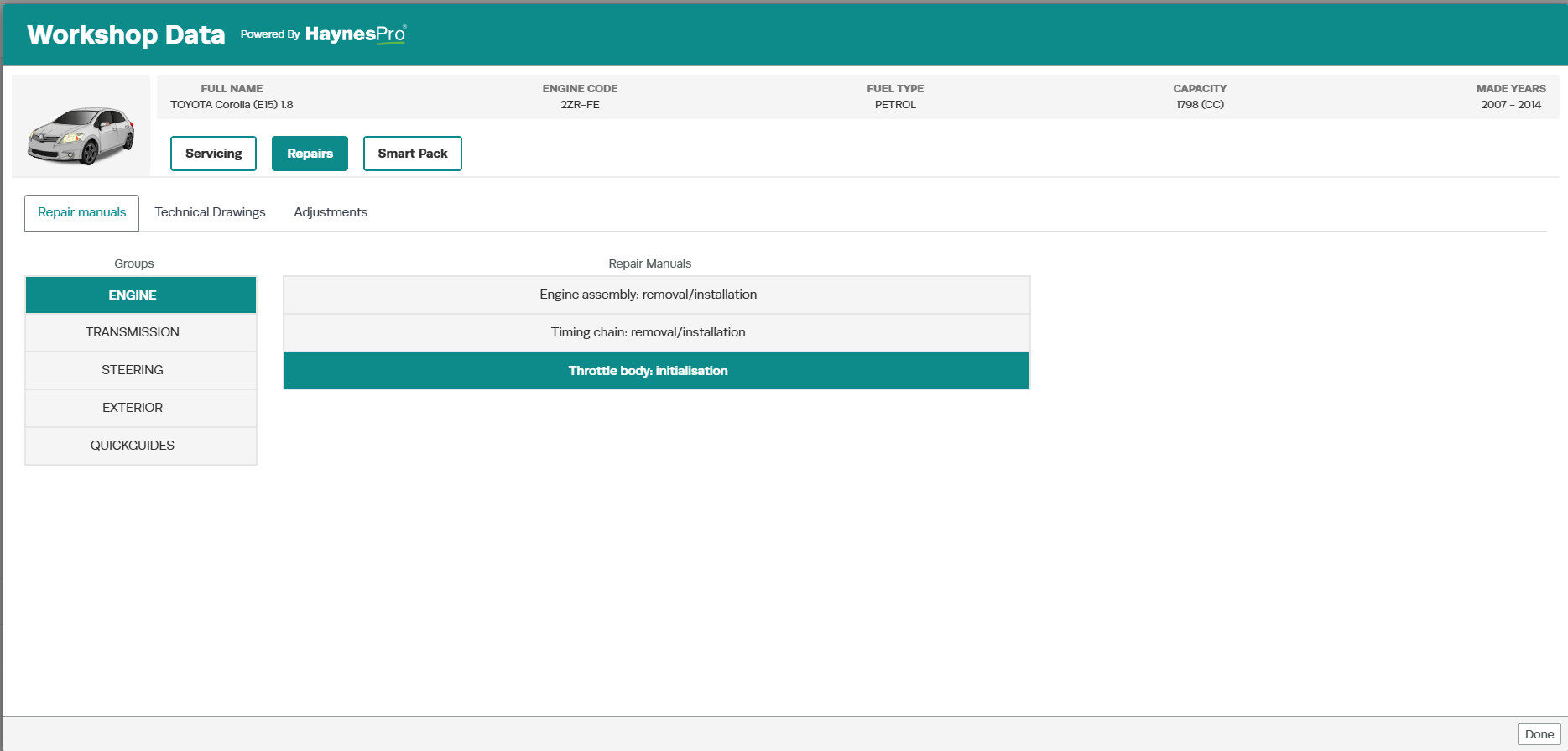
Closing the WorkshopData Application
When you’re finished viewing the information, simply click the “Done” button located at the bottom right corner of the screen. This will close the WorkshopData window and return you to your Workshop Software page.