 Skip to content
Saving your Workshop Software invoice as a PDF lets you keep a local copy for your records, email it as an attachment, or print it for a customer who prefers a paper copy. Follow the steps below to save any invoice as a PDF directly from your browser.
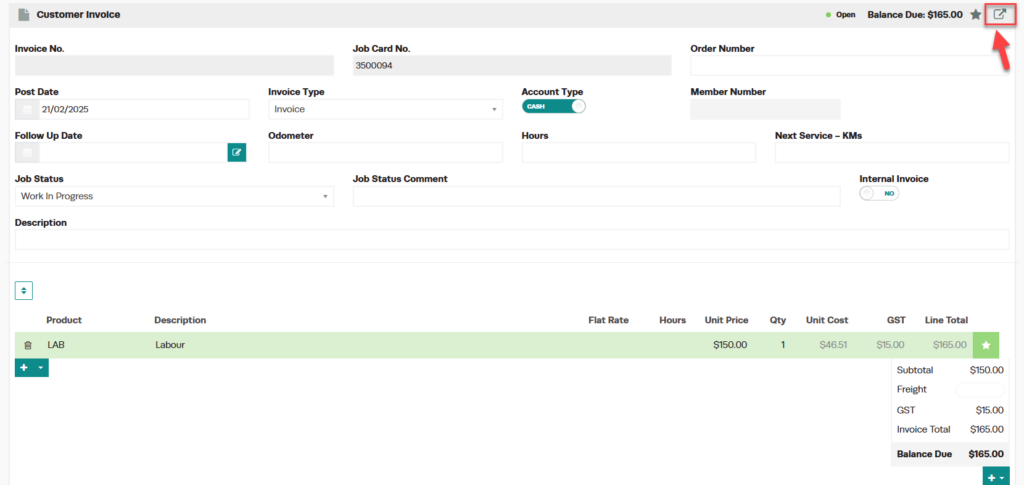
Step 1: Open the Invoice and Click the Export Icon
- Open the invoice you need.
- Click the square/arrow icon located on the Customer Invoice banner.
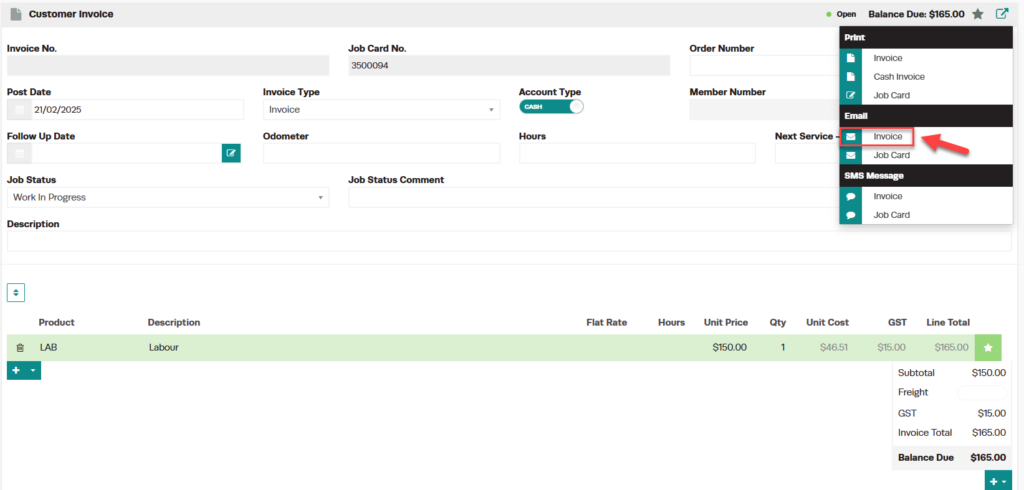
Step 2: Select Print Invoice
- From the dropdown menu, select Print Invoice.
Step 3: Open the Browser Print Dialog
- The invoice will appear in a new tab in your web browser.
- Click the printer icon located in the top right-hand corner of the screen.

Step 4: Change the Printer to Save as PDF
- When the print dialog appears, change the printer to Save as PDF.
- Click the Save button.

Step 5: Choose a Location and Save
- Your computer will ask where you want to save the document.
- Name the document and choose your preferred save location.
- Click Save to complete the process.

Good to Know
- The PDF version matches your invoice layout exactly, including your logo, line items, and any notes you have added.
- This process works in all major web browsers (Chrome, Firefox, Edge, Safari).
- You can also email the invoice directly from Workshop Software instead of saving as PDF first.
Frequently Asked Questions
Can I save multiple invoices as PDFs at once?
Currently, invoices need to be saved as PDFs individually. Open each invoice and follow the steps above.
Why does my PDF look different from the on-screen invoice?
Make sure your browser zoom is set to 100% before printing. Different zoom levels can affect the PDF layout.
