 Skip to content
This guide walks you through how to turn on business intelligence (bi) in Workshop Software. Follow the steps below to complete this task.
Business intelligence is an amazing help for you to make important business decisions in your garage workshop. This guide shows you how to turn it on for specific users in your organisation.
1. To access the BI information you do need to have admin level access
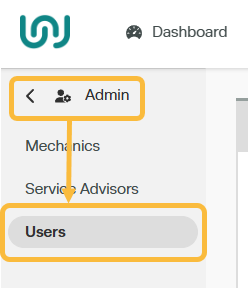
2. Click into ‘Admin‘ from the left hand navigation menu in Workshop Software. Then select ‘Users’
3. Click on the ‘pencil’ icon for the admin level username you want to give access to the BI information.

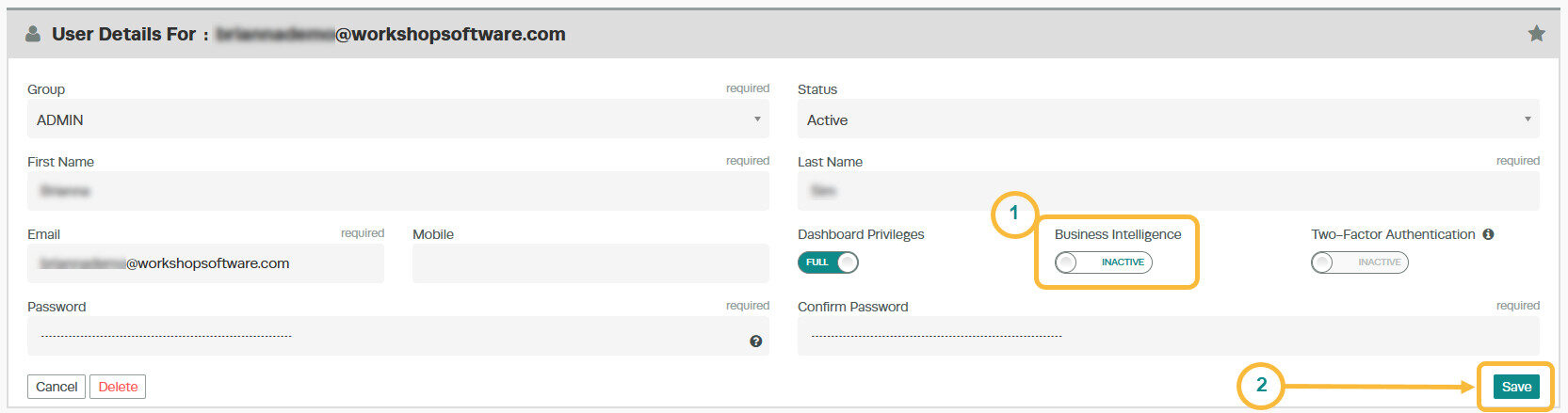
4. Click on the Business Intelligence toggle so that it switches from ‘Inactive’ to now say ‘Active’. The click on the green ‘Save’ button to save the changes you have made.
5. Now when you log in with this username you will see that the Dashboard is different. The standard dashboard is no longer visible, instead now you will have extra tabs called ‘Overview’, ‘Customers’, Vehicles’, ‘Products’, ‘Snapshot’.

By clicking on these tabs you will now see the BI information for these topics. When you first turn on the BI information the system will take a few minutes to pull through your data & display accordingly.
Check out our guide Business Intelligence Overview guide to find out what data you can see in the BI information
Good to Know
- Make sure you click Save after making your changes. If you navigate away before saving, your changes will be lost.
Frequently Asked Questions
Do I need a specific subscription level for this feature?
Some features in Workshop Software are available on specific subscription plans. If you do not see the option described above, check your current plan or contact the Workshop Software team.
